


Extruder Switch Cam for Bambu Lab
Couldn't load pickup availability
Use this text to encourage communication or promote sharing on social networks.
The extruder switching system operates through a switching motor and transmission mechanism that drives the Extruder Switch Cam. This action causes the left and right driven wheel linkages (driven rods) to swing. A tension spring, attached to the driven rod, ensures that one driven wheel is pressed firmly against the drive wheel, enabling filament extrusion as the drive wheel rotates. Simultaneously, the opposite driven wheel remains disengaged, preventing unwanted filament movement.
By reversing the drive wheel's rotation, the extruder motor can selectively engage either driven wheel, enabling seamless dual extrusion using a single drive wheel.
In the Box
- Extruder Switch Cam*1
Compatibility
H2D and H2D Laser
H2C and H2C Laser
Replace H2D Dual Extruder Gears/Extruder Switch Cam
This article introduces how to replace the H2D dual extruder gears/extruder switch cam
Dual Extruder Gears/Extruder Switch Cam
Both the dual extruder gears and the extruder switch cam have spare parts available for replacement. You can choose the necessary spare parts based on your actual requirements.
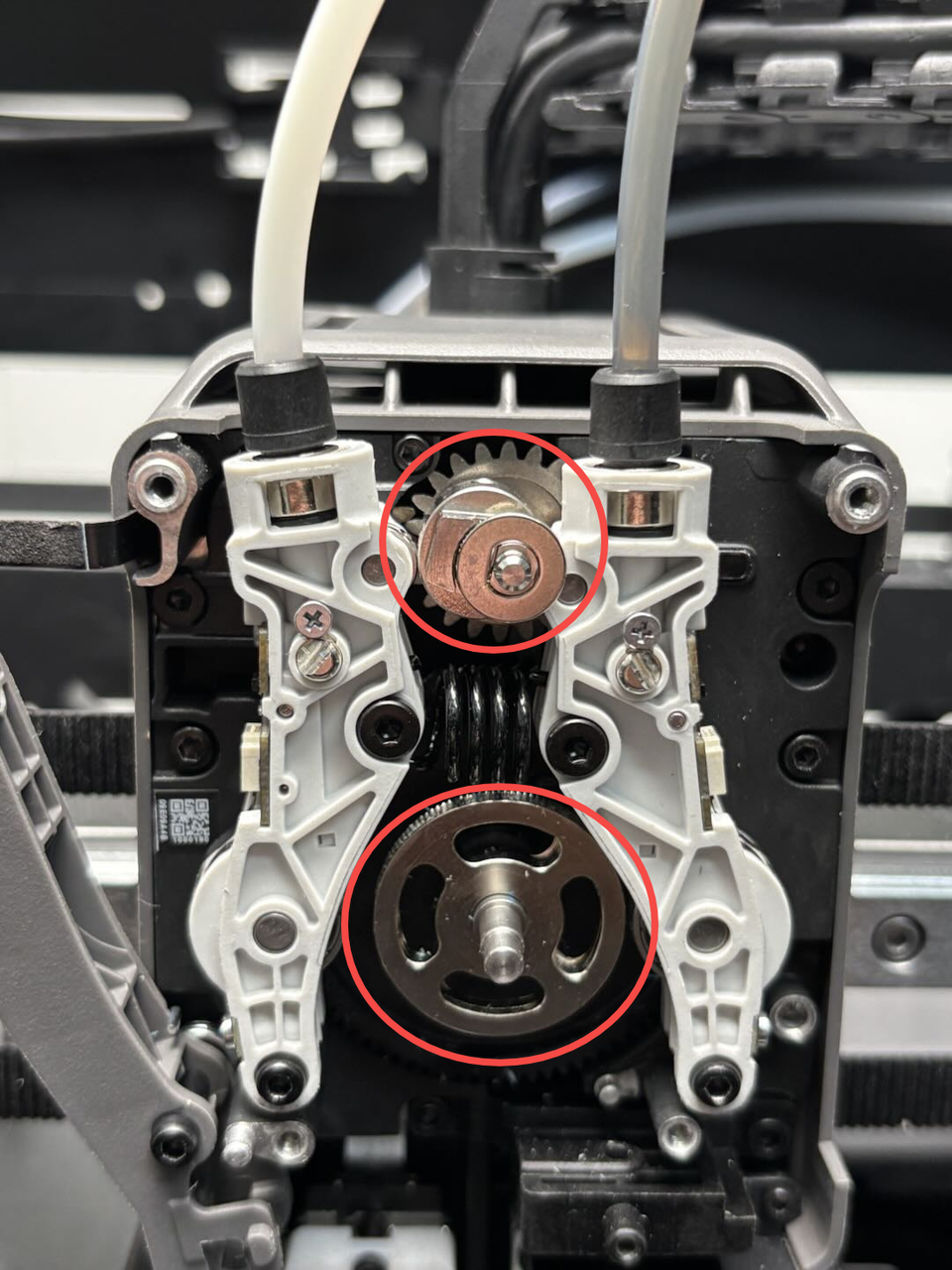
The spare parts for the dual extruder gears include:
Extruder Gear × 1
The spare parts for the extruder switch cam include:
Cam × 1
When to Use
Extruder gear wear
Cam damage
Tools and Materials Needed
New dual extruder gears/extruder switch cam
H2.0 Allen key
H1.5 Allen key
Specifications and quantities of screws involved in replacing the H2D dual extruder gears/extruder switch cam (it is recommended to keep the removed screws properly to avoid loss):
M2.5x7x5pcs;
BT2x6x1pcs;
BT2x5x2pcs;
Safety Warning
IMPORTANT!
It's crucial to power off the printer before conducting any maintenance work, including work on the printer's electronics and tool head wires. Performing tasks with the printer on can result in a short circuit, leading to electronic damage and safety hazards.
During maintenance or troubleshooting, you may need to disassemble parts, including the hotend. This exposes wires and electrical components that could short circuit if they contact each other, other metal, or electronic components while the printer is still on. This can result in damage to the printer's electronics and additional issues.
Therefore, it's crucial to turn off the printer and disconnect it from the power source before conducting any maintenance. This prevents short circuits or damage to the printer's electronics, ensuring safe and effective maintenance. For any concerns or questions about following this guide, we recommend submitting a technical ticket regarding your issue and we will do our best to respond promptly and provide the assistance you need.
Remove the Dual Extruder Gears/Extruder Switch Cam&##x20;
Step 1: Remove the dual extruder idlers and filament sensor&##x20;
You can refer to the following Wiki to remove the dual extruder idlers and filament sensor, which will facilitate the subsequent removal of the extruder gear and cam
Step 2: Remove the extruder gear/cam
Simply remove the cam directly. The extruder gear might be tight; if it cannot be removed directly, you can use an Allen key to gently pry and remove the extruder gear.
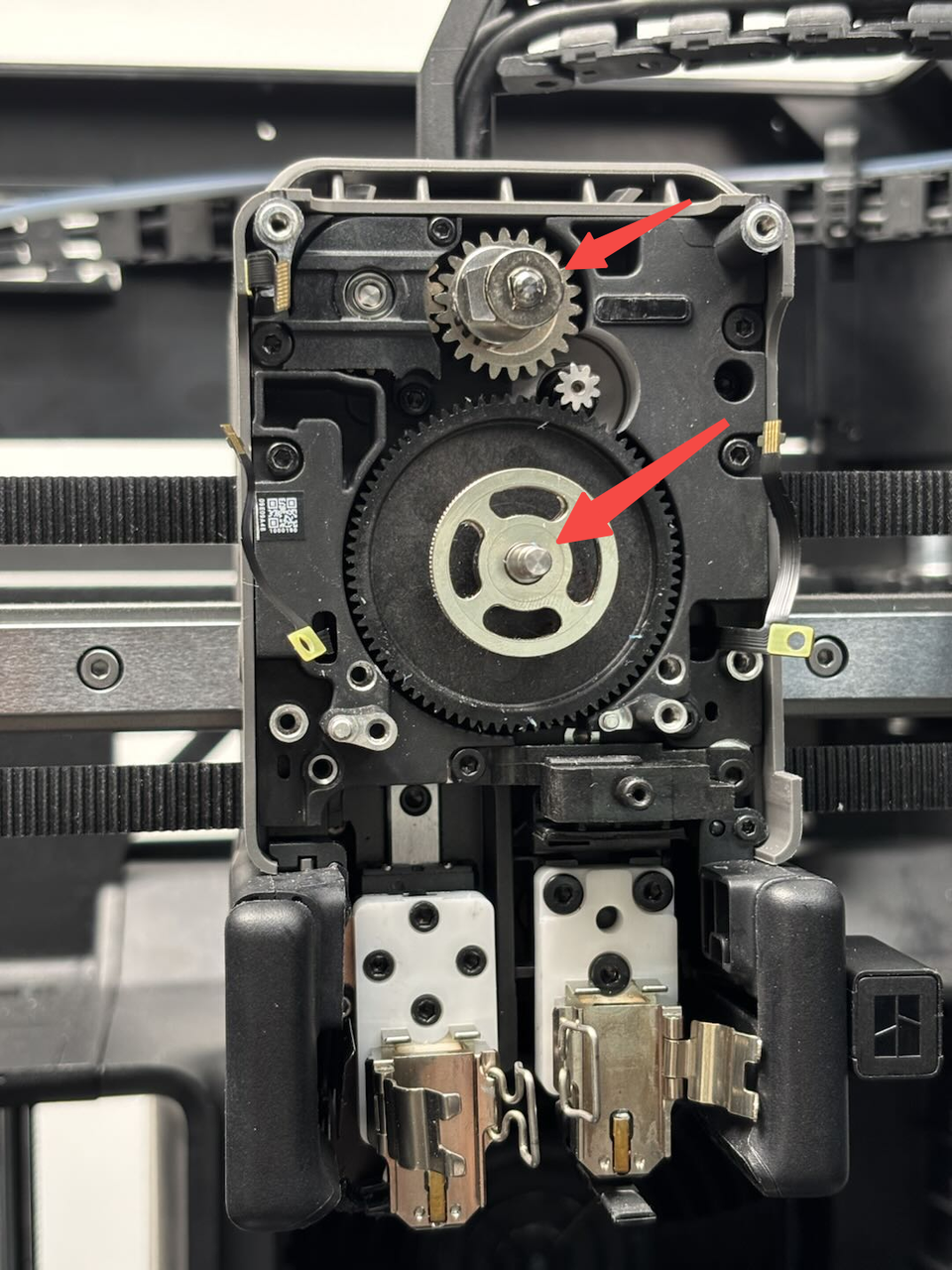
Install the Dual Extruder Gears/Extruder Switch Cam&##x20;
Step 1: Install the extruder gear/cam
Place the new cam back into position. It is recommended to position the trapezoidal platform to the left or right to facilitate the subsequent installation of the dual extruder idlers and filament sensor. Insert the new extruder gear into the extruder and press it firmly.
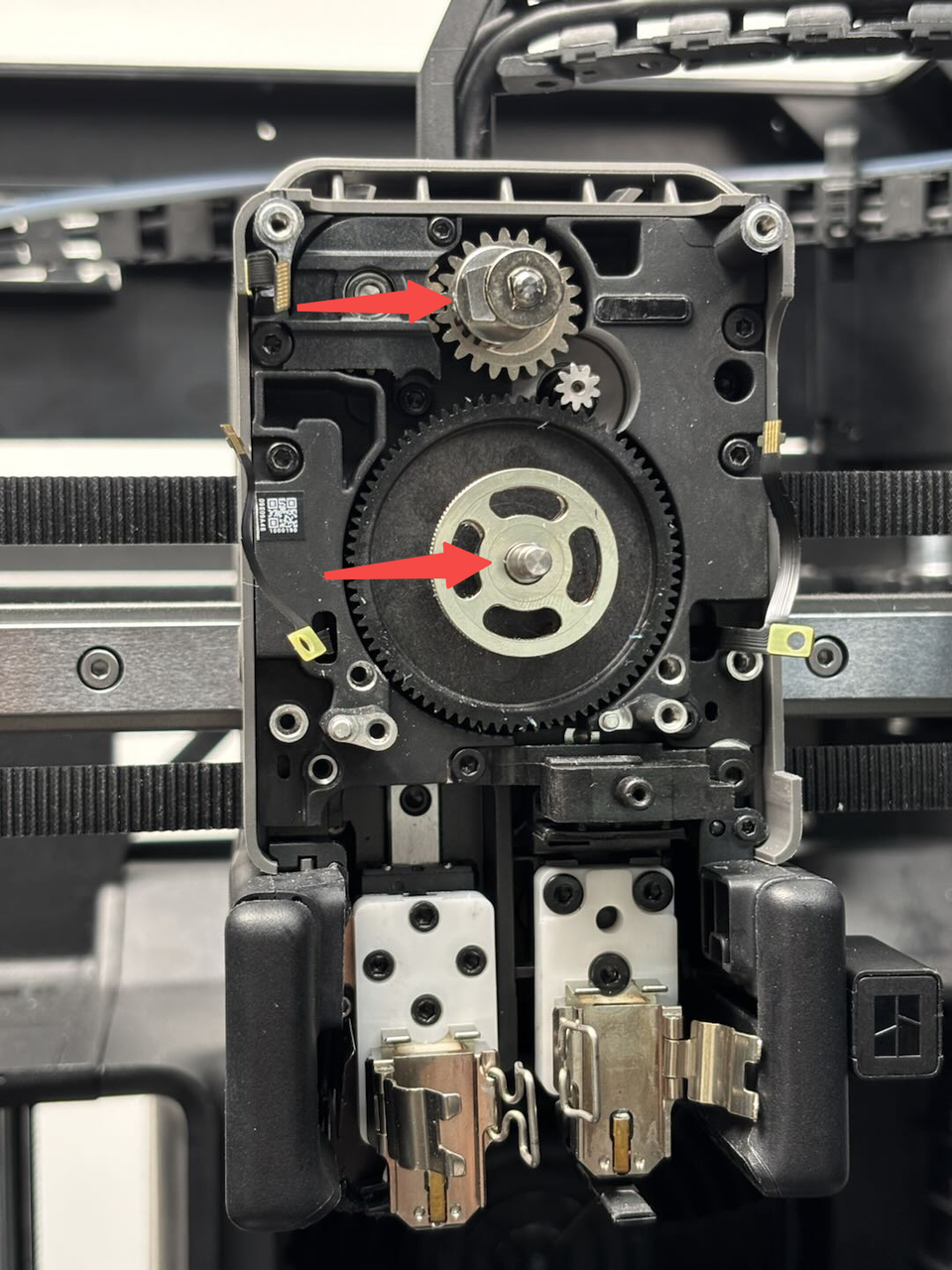
Step 2: Install the dual extruder idlers and filament sensor
You can refer to the following Wiki to install the dual extruder idlers and filament sensor:
Verify the Functionality
Connect the power and turn on the printer. Use the screen to switch between the hotends and check if the left and right hotends can switch normally. Click the "Load" button and check if the filament extrudes normally.