


Auxiliary Part Cooling Fan - H2 Series for Bambu Lab
Couldn't load pickup availability
Use this text to encourage communication or promote sharing on social networks.
The Auxiliary Part Cooling Fan is a powerful 12W cooling fan installed on the left side of the printer chamber, providing better cooling conditions for high-speed printing.
In the Box
- Auxiliary Part Cooling Fan*1
- BTG3-14.5 Screw*2
- Soft Screw*2
Compatibility
H2 Series
Replace H2D Auxiliary Part Cooling Fan
This article describes how to replace H2D Auxiliary Part Cooling Fan
Auxiliary Part Cooling Fan
The auxiliary part cooling fan is installed on the left side of the printer chamber, providing better cooling conditions for high-speed printing.
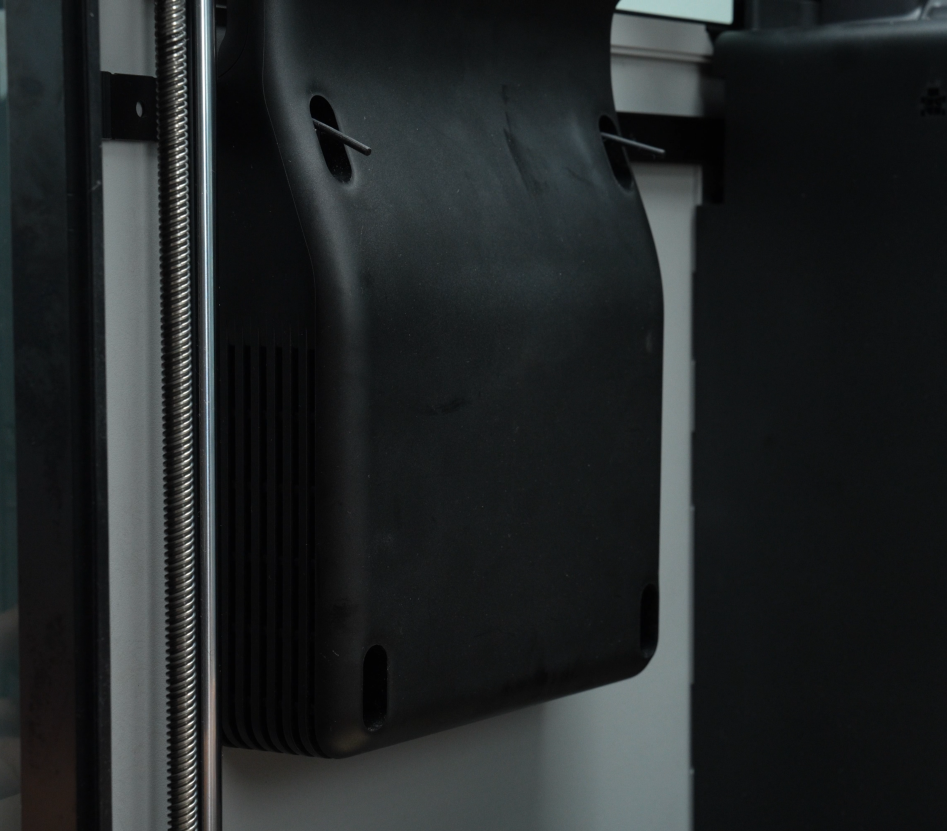
The spare parts of the auxiliary part cooling fan include the following:
1.Auxiliary part cooling fan * 1
2.Soft screws - used to fix the two screw holes in the upper row of the auxiliary part cooling fan * 2;
3.BT3x16 screws - used to lock the two screw holes in the lower row of the auxiliary part cooling fan * 2.
When to use
Blade damage or fan motor failure
Squeaky fan
Tools and materials needed
New auxiliary part cooling fan
H2.0 Allen key
Specifications and quantities of screws involved in replacing the H2D left side panel (it is recommended to keep the removed screws properly to avoid loss):
BT3x8x12pcs;
M3x3(Nut diameter 10mm) x 4pcs;
BT3x16x2pcs;
ST3x3x2pcs;
ST3x8x11pcs;
ST3x12x2pcs;
Safety Warning
IMPORTANT!
It's crucial to power off the printer before conducting any maintenance work, including work on the printer's electronics and tool head wires. Performing tasks with the printer on can result in a short circuit, leading to electronic damage and safety hazards.
During maintenance or troubleshooting, you may need to disassemble parts, including the hotend. This exposes wires and electrical components that could short circuit if they contact each other, other metal, or electronic components while the printer is still on. This can result in damage to the printer's electronics and additional issues.
Therefore, it's crucial to turn off the printer and disconnect it from the power source before conducting any maintenance. This prevents short circuits or damage to the printer's electronics, ensuring safe and effective maintenance. For any concerns or questions about following this guide, we recommend submitting a technical ticket regarding your issue and we will do our best to respond promptly and provide the assistance you need.
Remove the Auxiliary Part Cooling Fan
Step 1: Lower the Heatbed
Control the heatbed through the screen and lower it to the bottom of the printer.

After lowering the heatbed, turn off the printer and disconnect the power.
Step 2: Remove the Rear Panel
Before removing the left side panel, you need to remove the rear panel first. You can refer to this Wiki to remove the H2D rear panel:
Step 3: Remove the Front Glass Door/Front Laser Safety Window
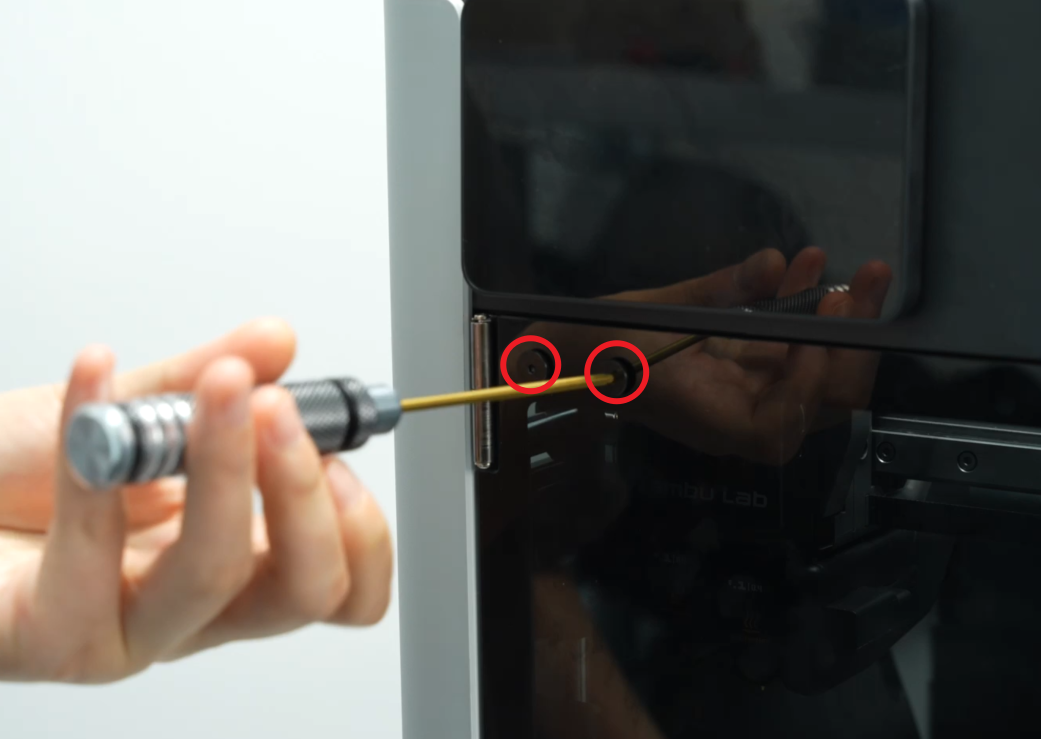
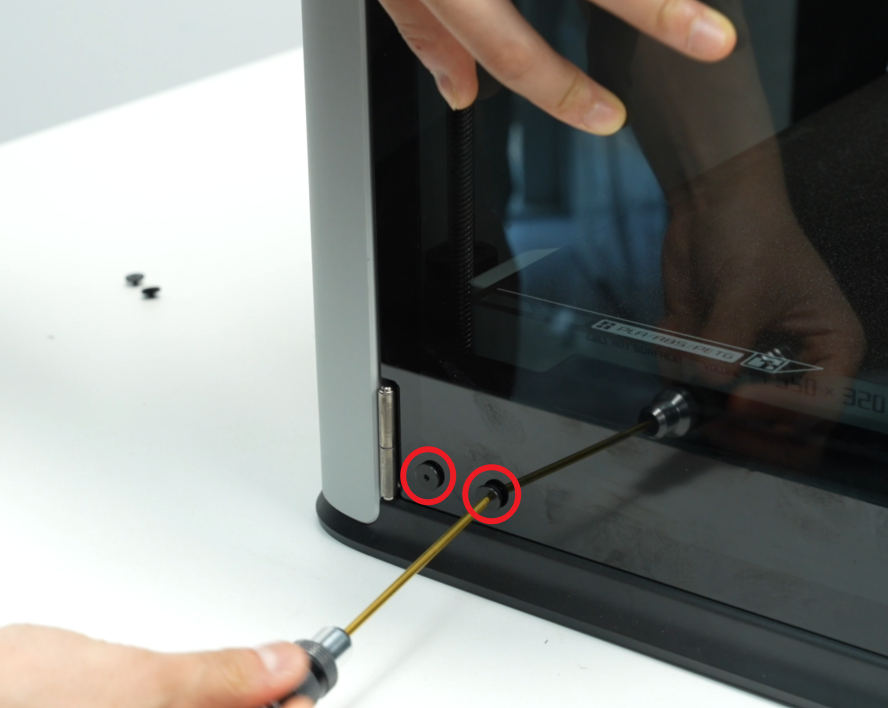
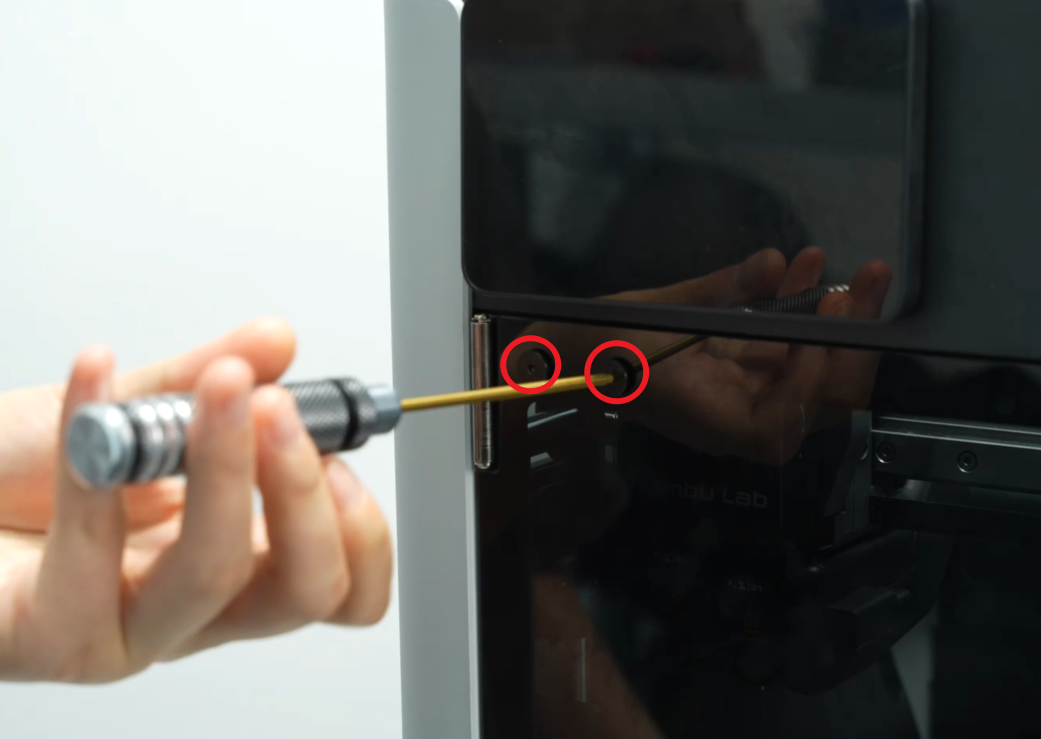
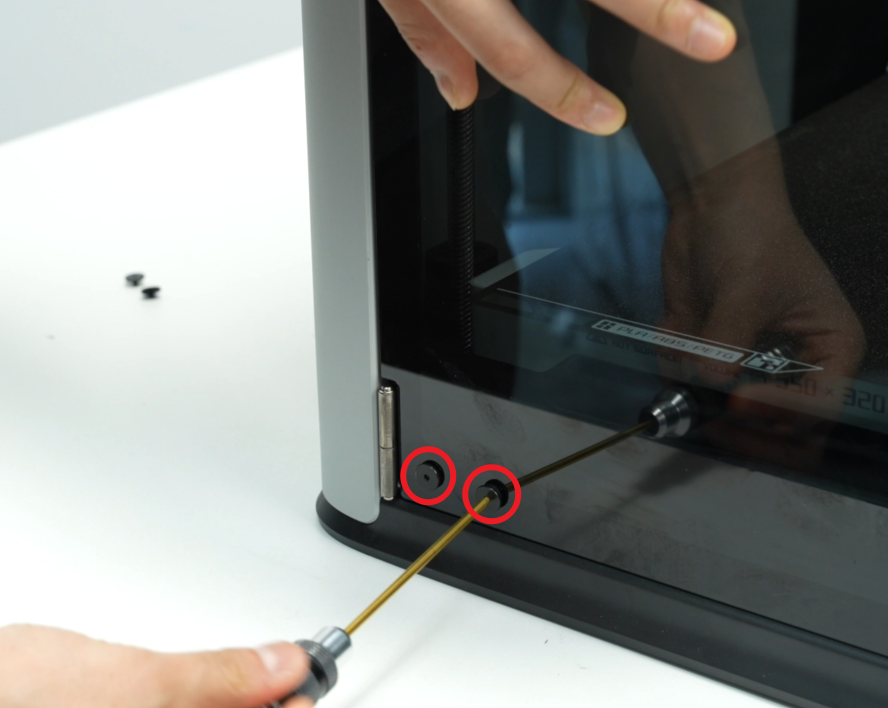
Use an H2.0 Allen key to remove the 4 screws (M3x3, nut diameter 10mm) that secure the front door, 2 screws on the top and 2 screws on the bottom, then hold the front glass door with one hand and remove the front door.
Be sure to hold the front glass door with your hand to prevent it from falling.
Step 4: Take down the Auxiliary Part Cooling Fan
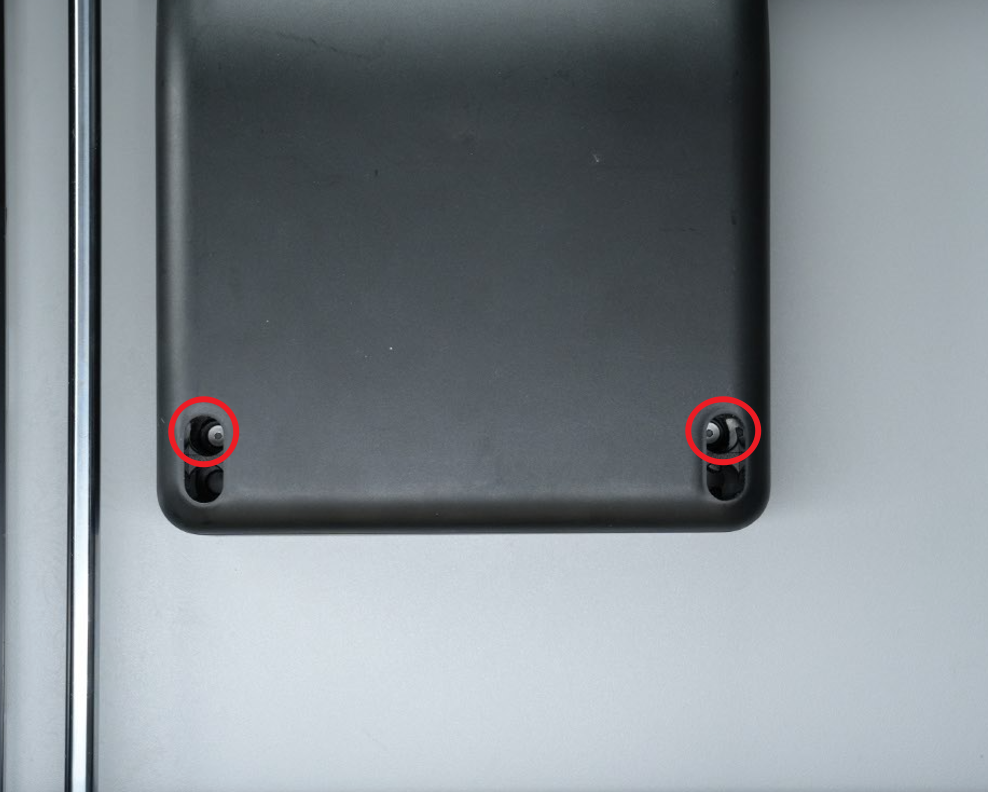
1.Use an H2.0 Allen key to remove the two fixing screws (BT3x16) at the bottom of the auxiliary part cooling fan.
Note: The fixing screws of the H2D auxiliary part cooling fan are all located in the small holes on the top.
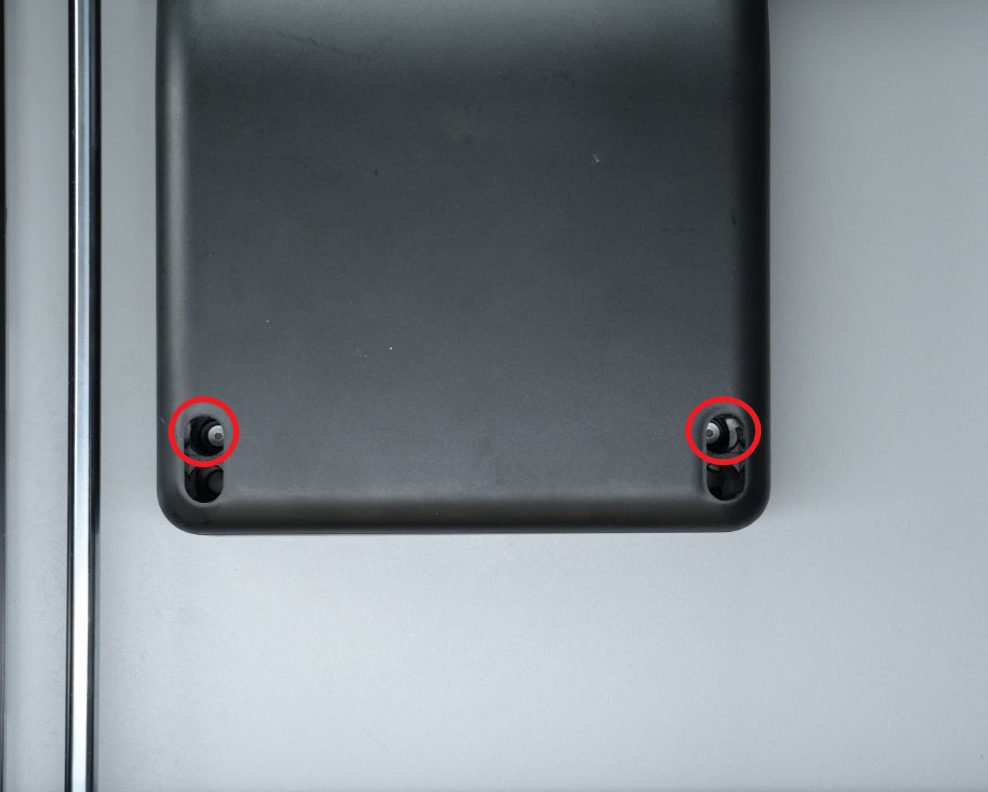
2.The two screws above the auxiliary part cooling fan are soft screws. After you remove the two screws below, you can hold the auxiliary part cooling fan and unplug the fan directly. After unplugging it, you can first prevent the auxiliary part cooling fan from being placed on the heatbed.
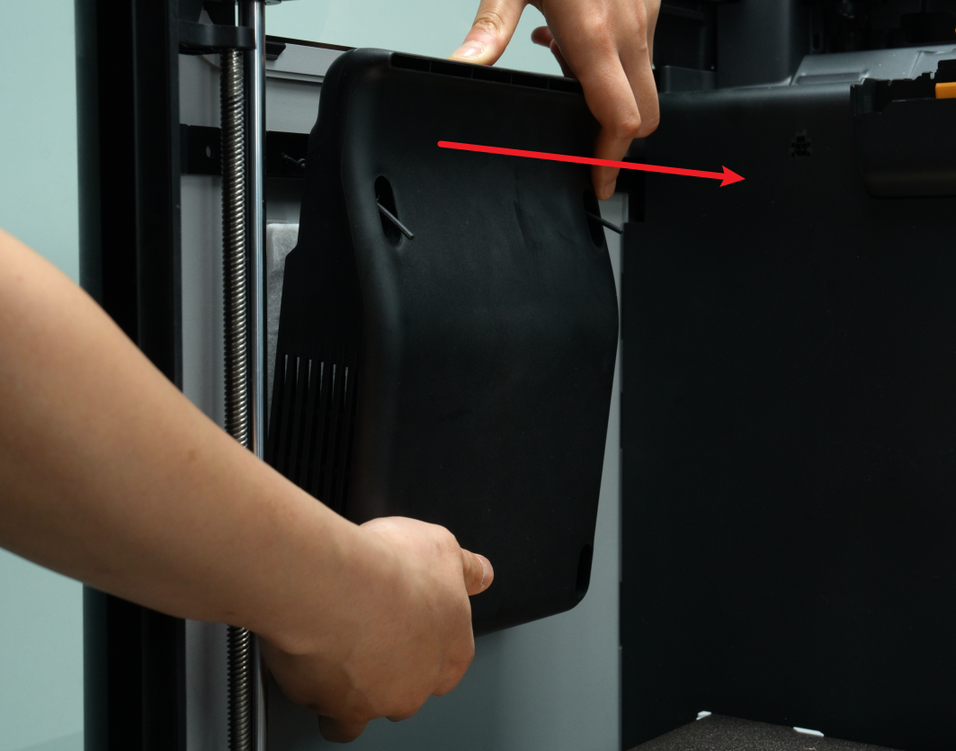
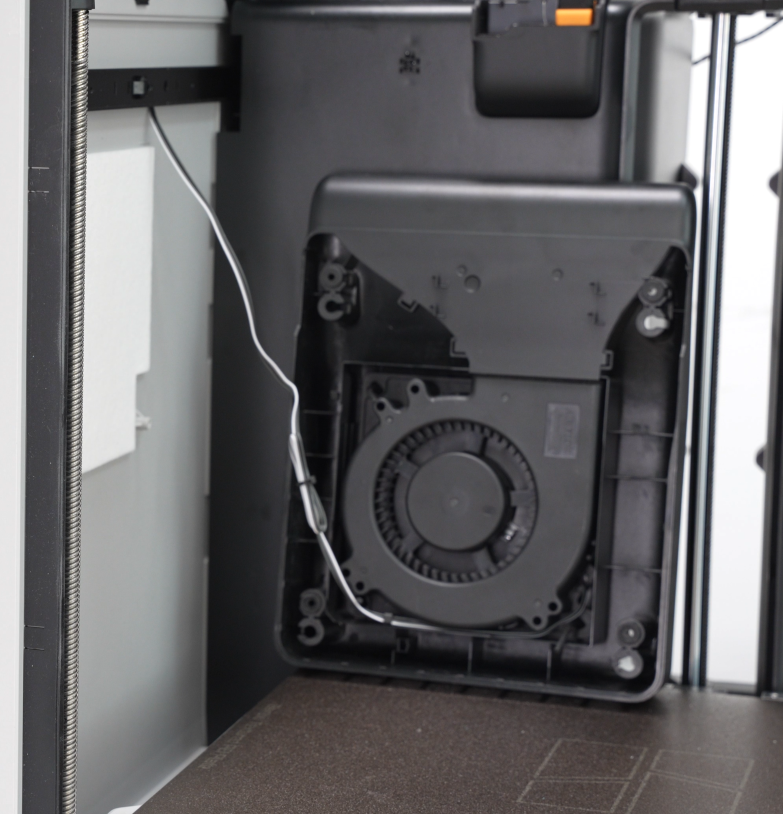
Step 5: Remove the Left Side Panel Fixing Screws
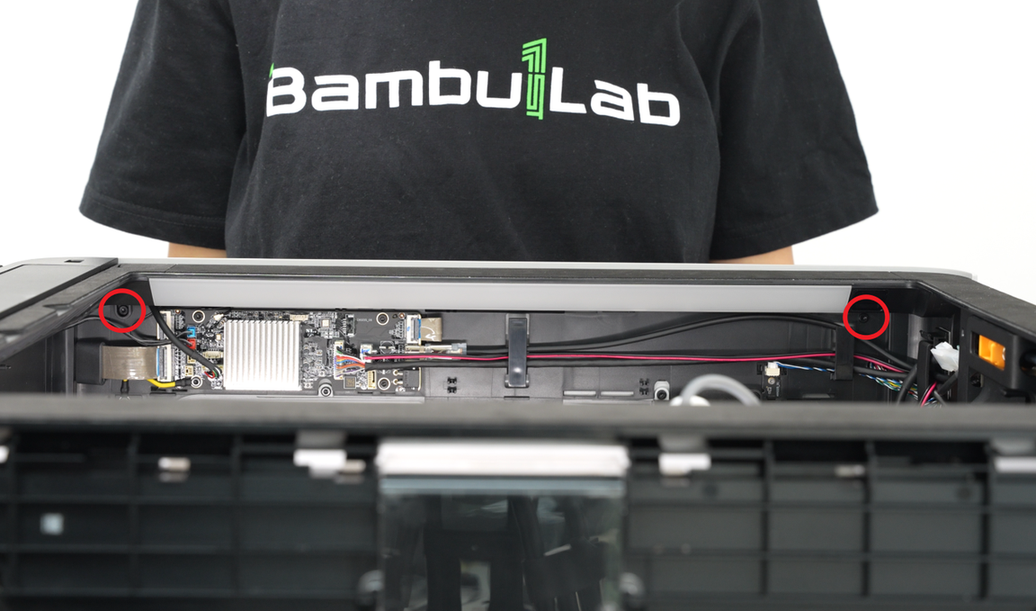
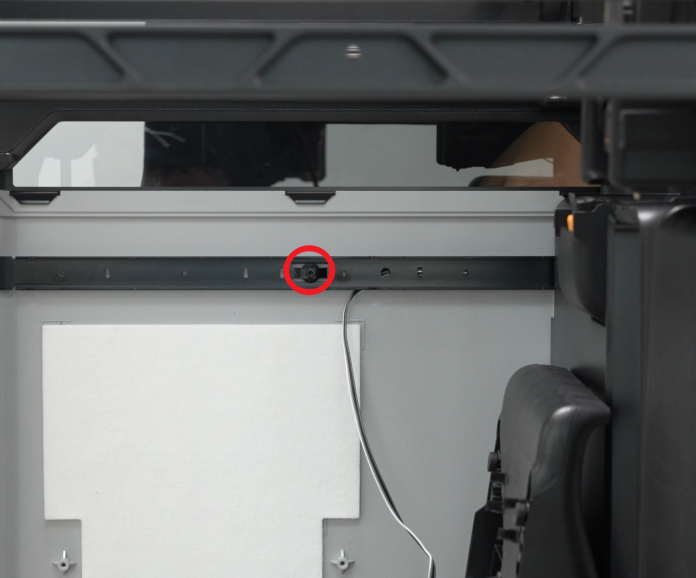
1.Use an H2.0 Allen key to remove the two fixing screws (BT3×8) that lock the upper frame and one fixing screw (BT3×8) that locks the beam.
Note: The corresponding holes are reserved on the AP board. The two fixing screws of the upper frame can be removed without removing the AP board. The following figure shows the AP board removed for easy shooting.
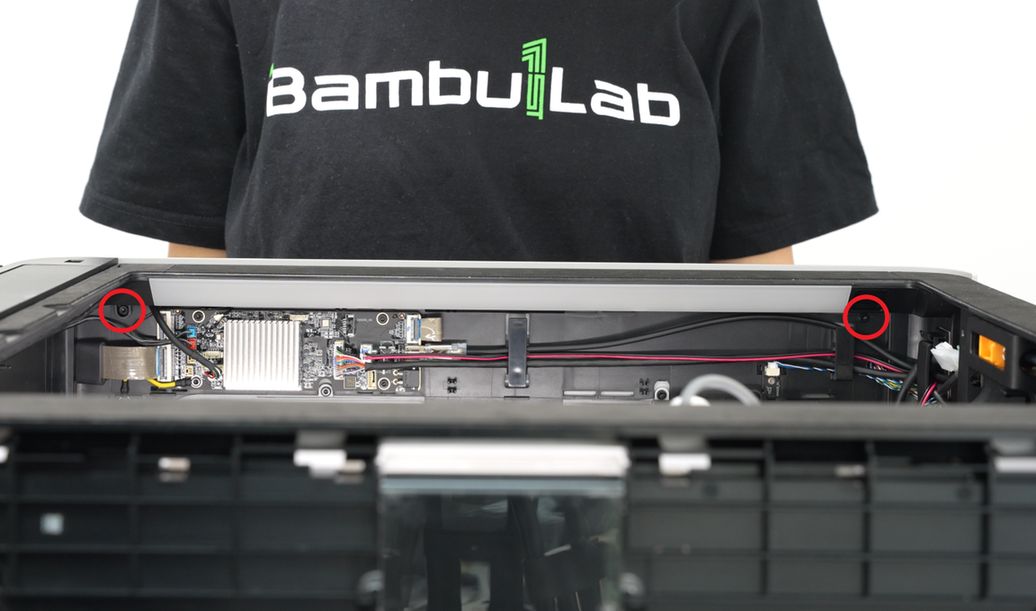
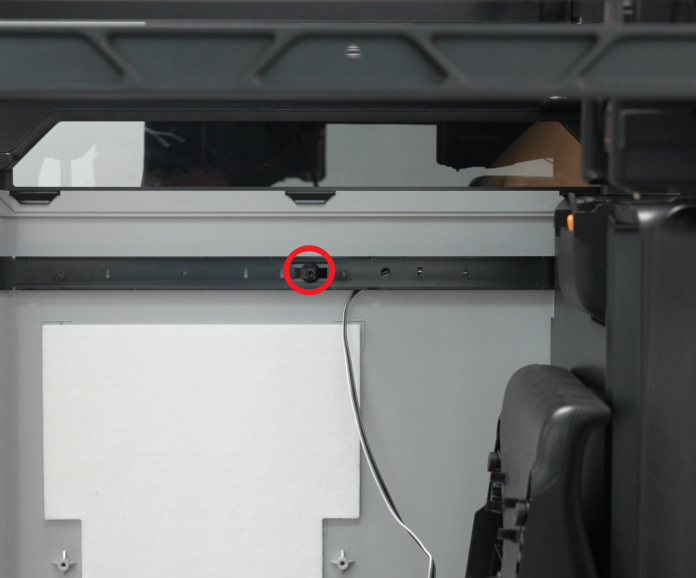
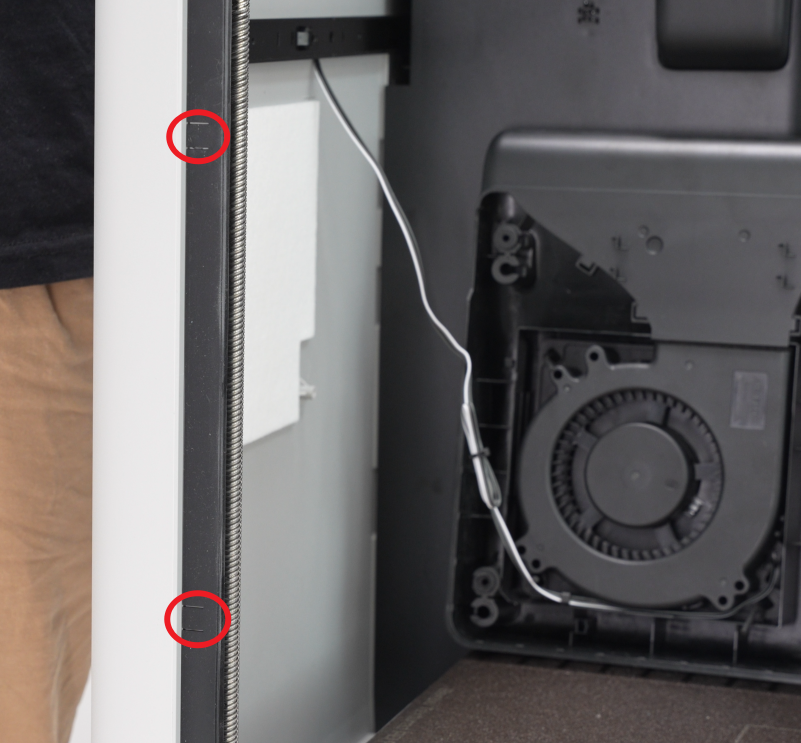
2.Two screws (M3×3) locked on the pillar. These screws are behind the rubber strip. You need to pry open the rubber strip from its opening, and then you can see the screws.
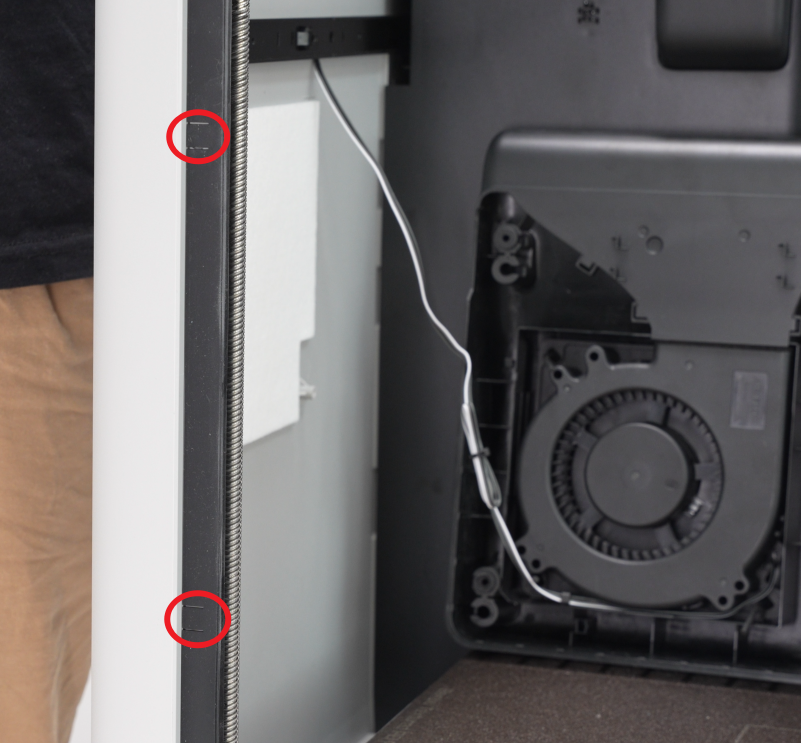
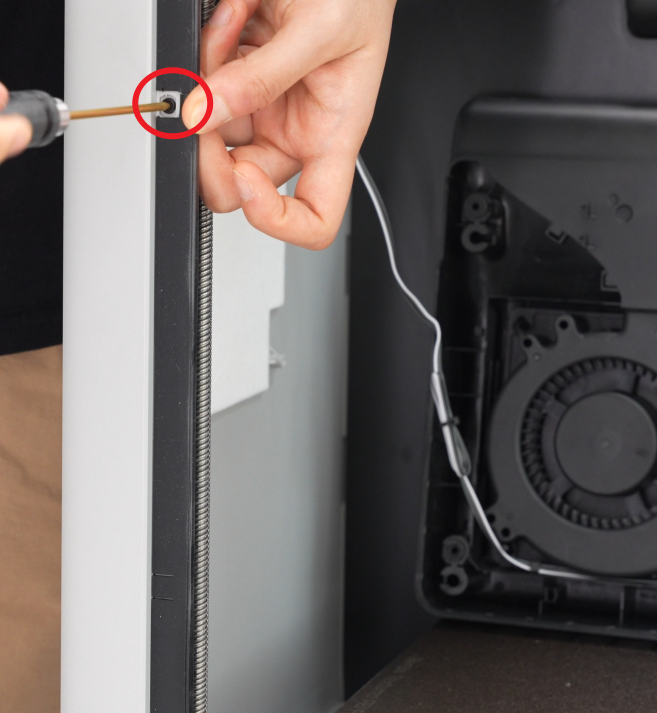
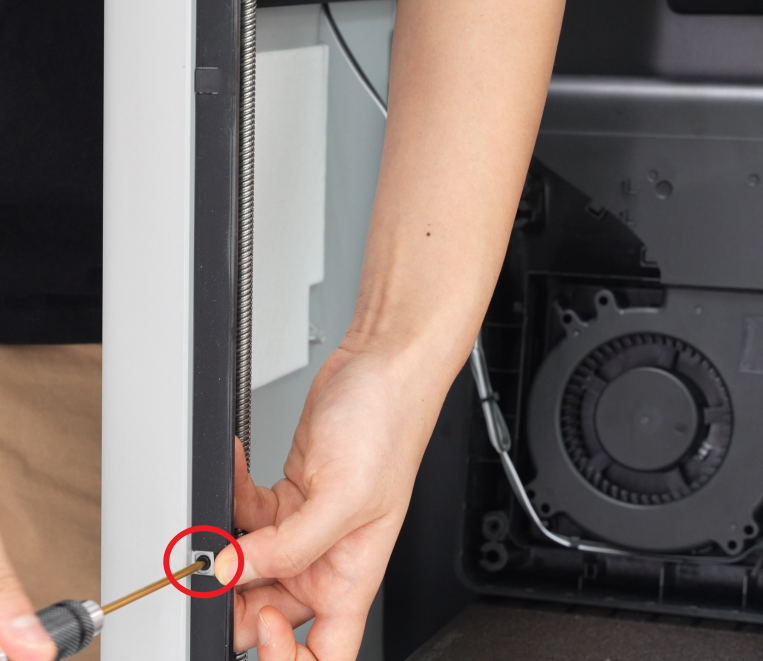
Step 6: Remove the Left Side Panel
1.In addition to screws, the left side panel is also fixed to the printer with buckles. Before opening the left side panel, please tear off the silicone on the left side panel and loosen the hall connector of the left side panel from the cable buckle of the AC board cable cover to avoid breaking the cable when opening the side panel.
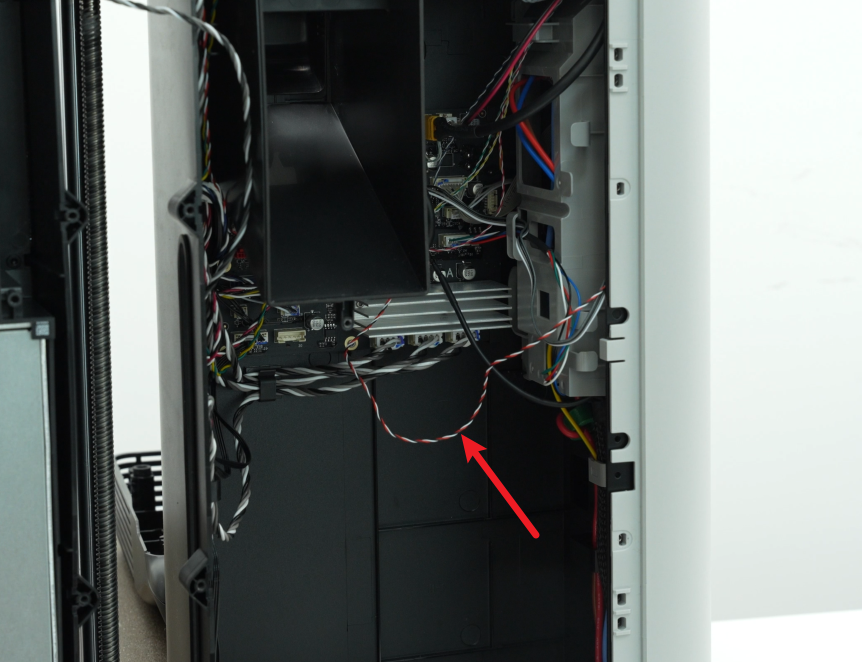
2.Then you can first open the buckle at the back of the printer;
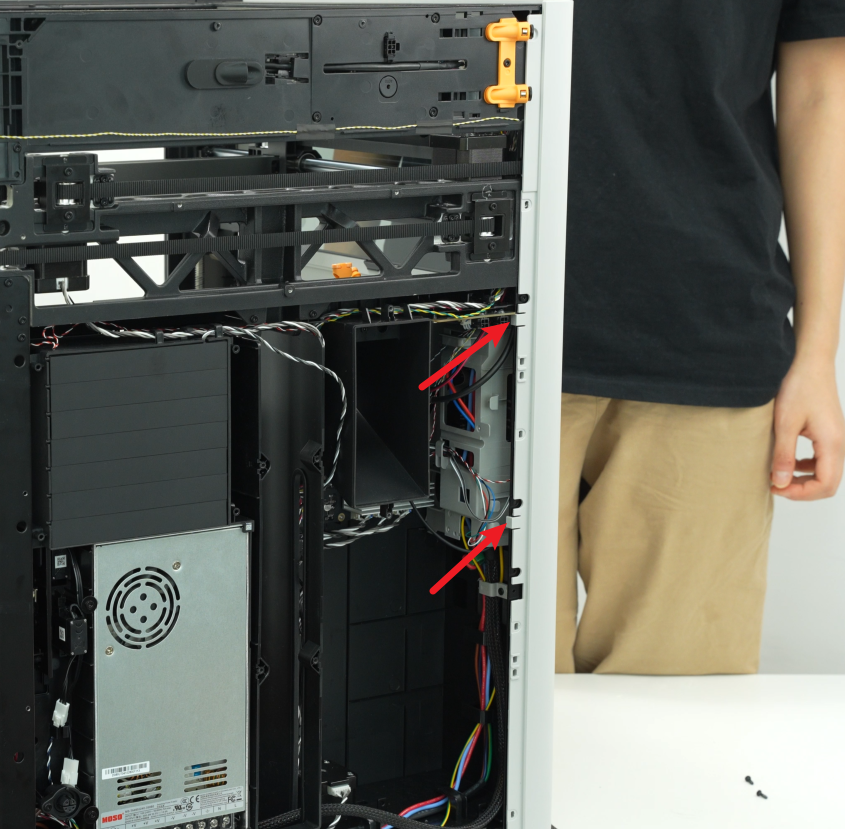
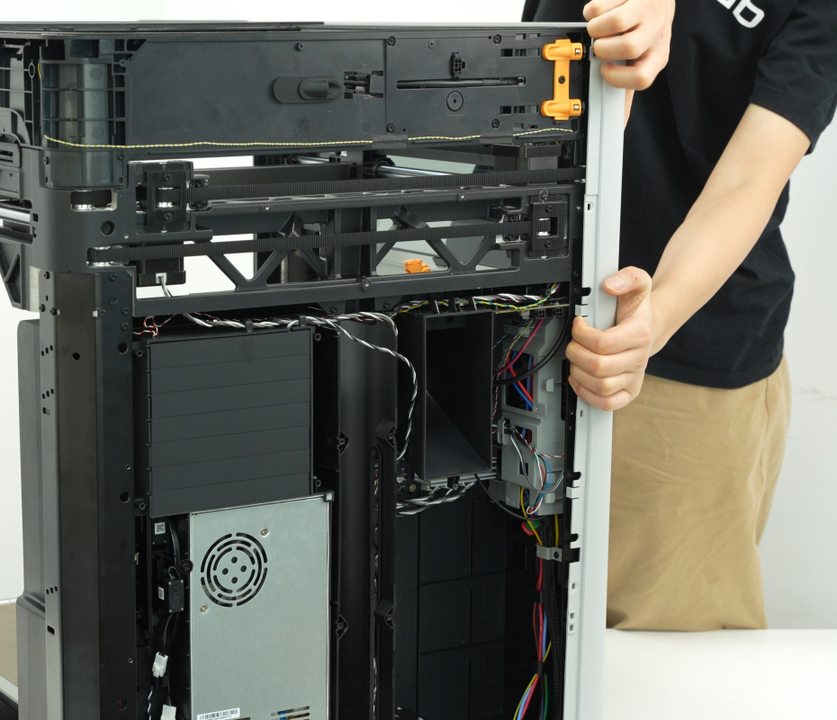
3.Then you can use the Allen key to pry open the buckle on the top of the left side panel, pry open the left side panel from the front, disconnect the hall connector of the left side panel, tear off the tape on the left side panel, and then remove the left side panel.
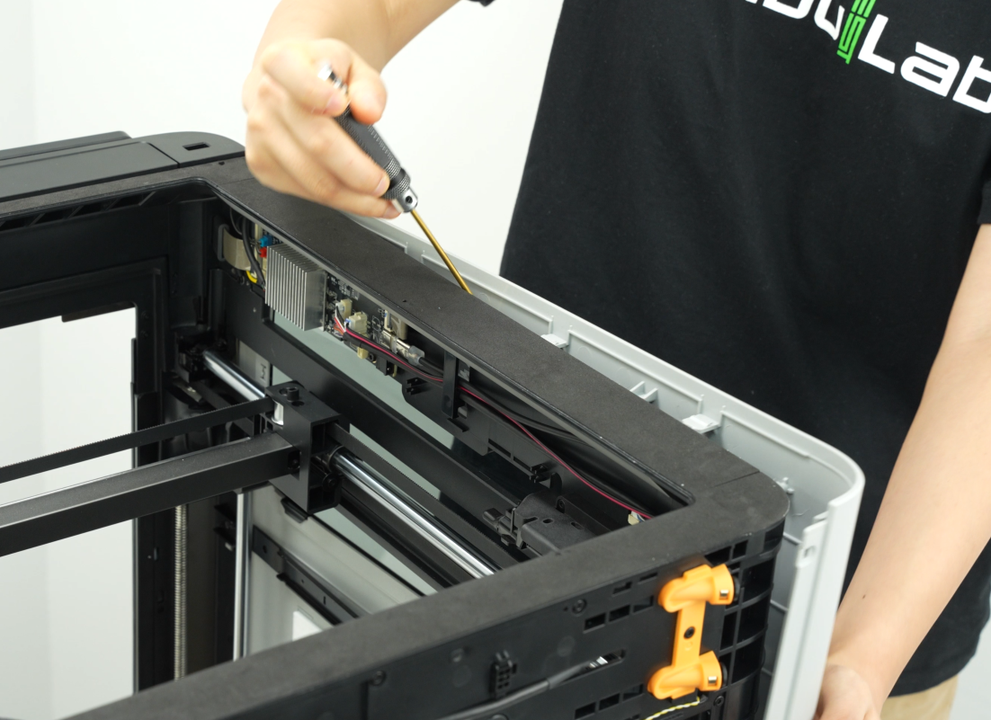
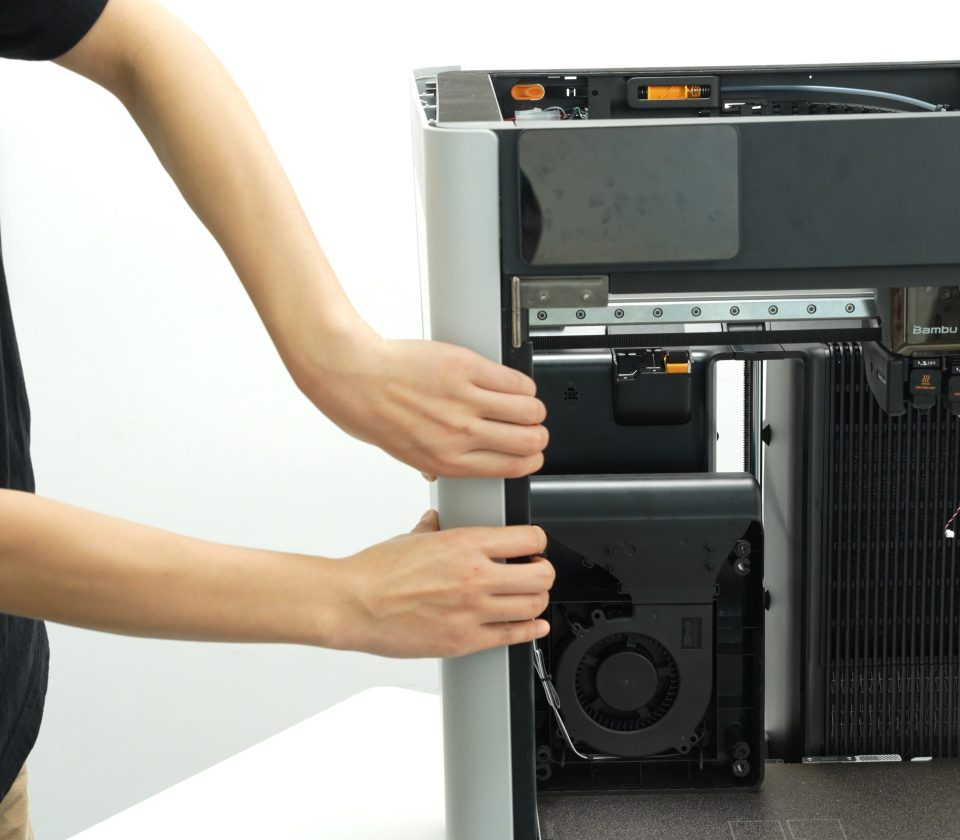
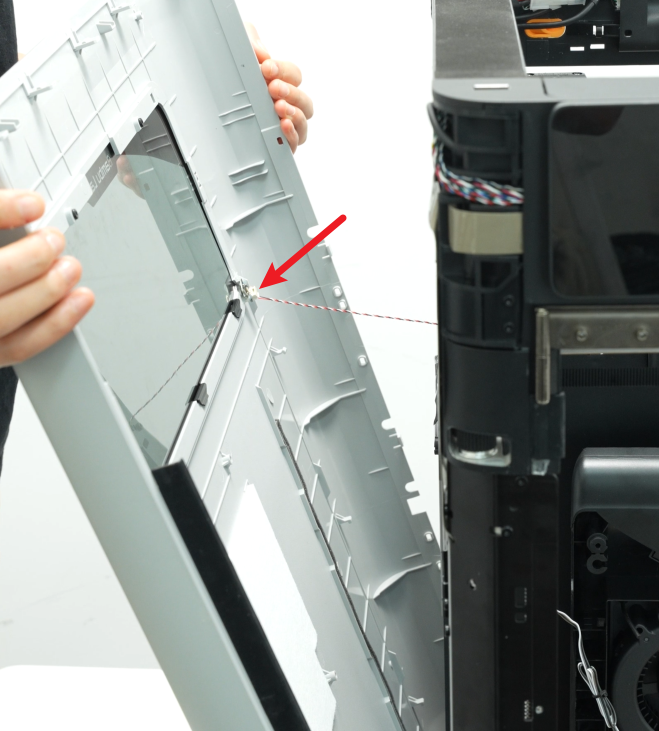
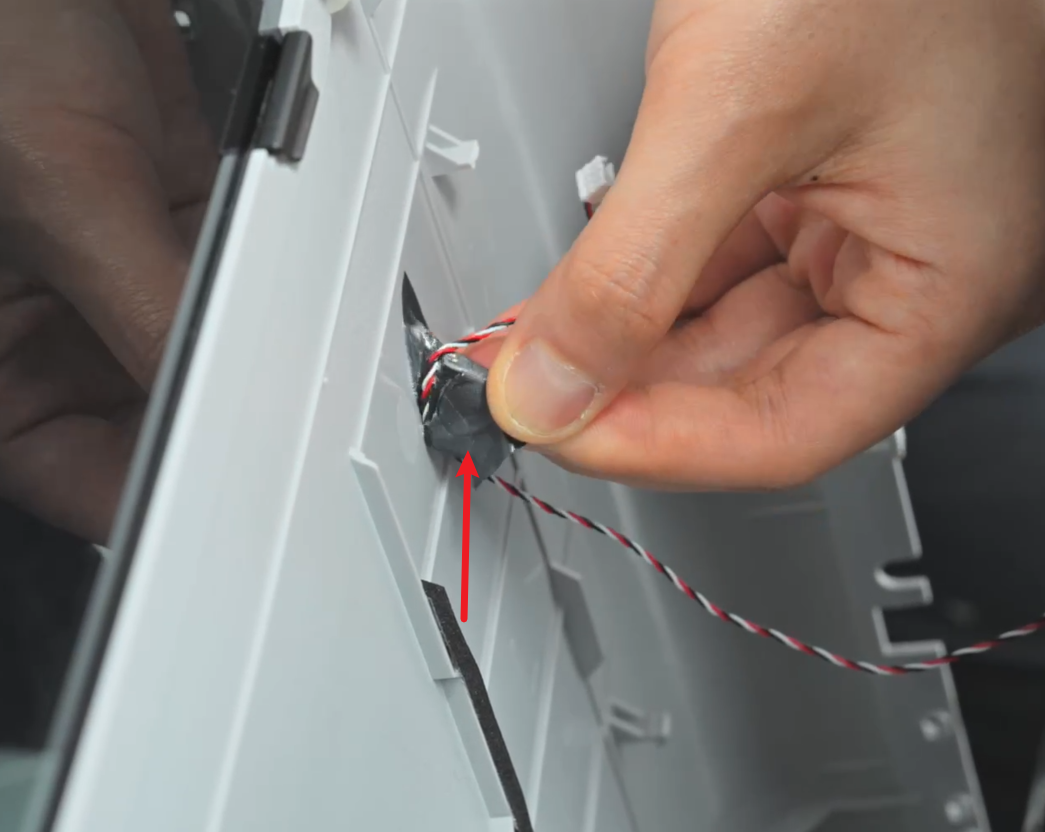
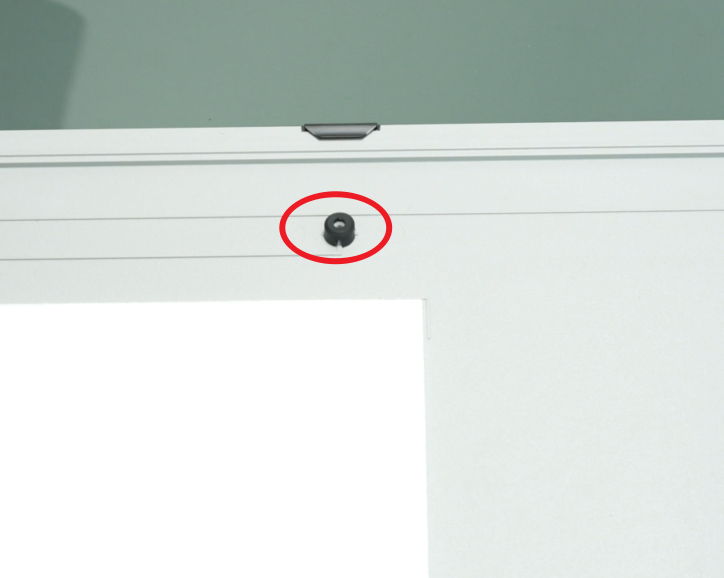
Please note that there is a round silicone plug in the screw hole behind the auxiliary part cooling fan. Be careful when removing the side panel to avoid losing it.
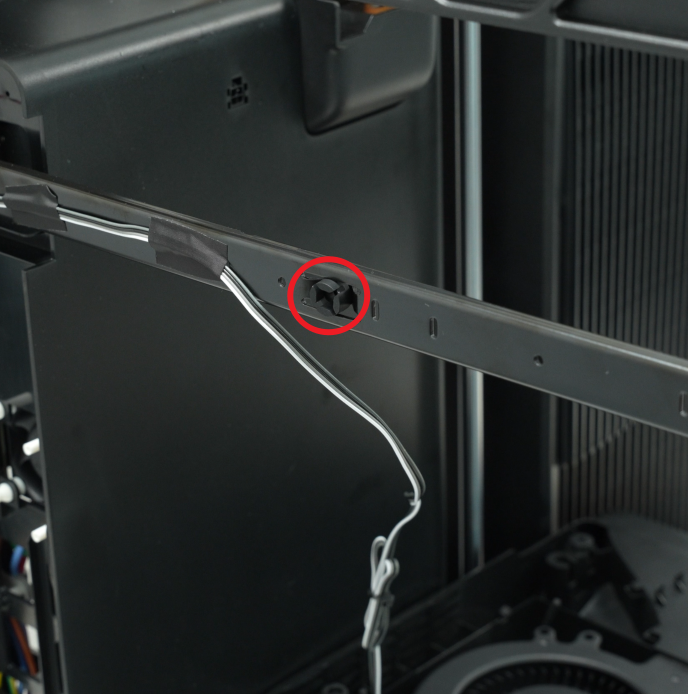
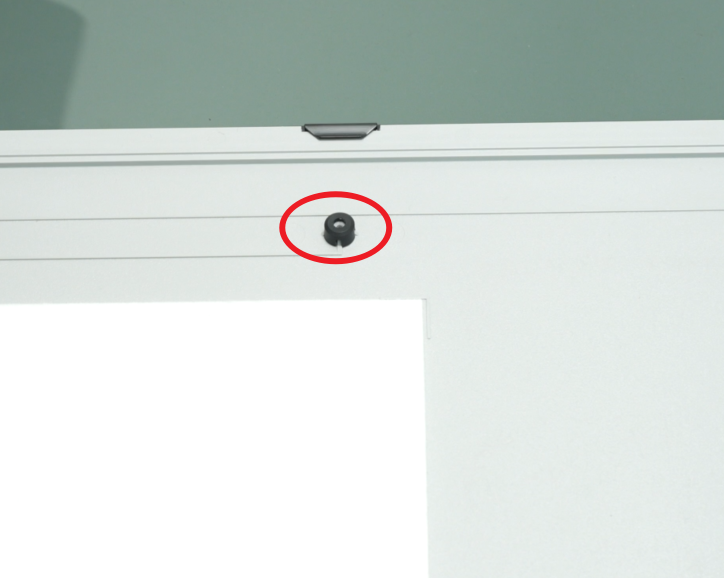
Step 7: Remove the Auxiliary Part Cooling Fan
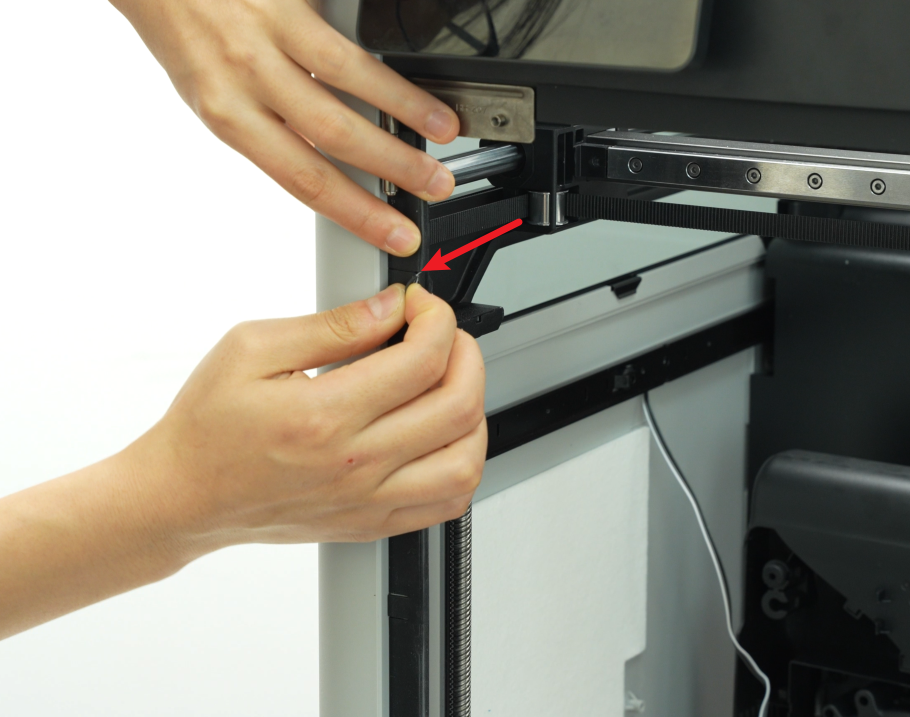
1.Remove the tape that covers the auxiliary part cooling fan cable, loosen the cable, and then place the tape on the beam so that you can use it to secure the cable later.
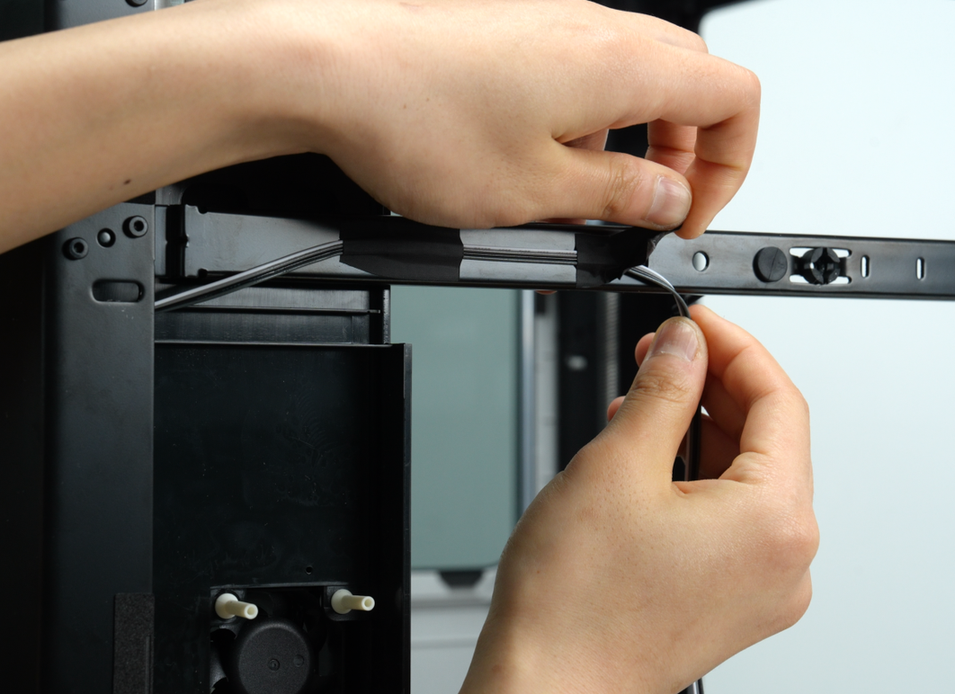
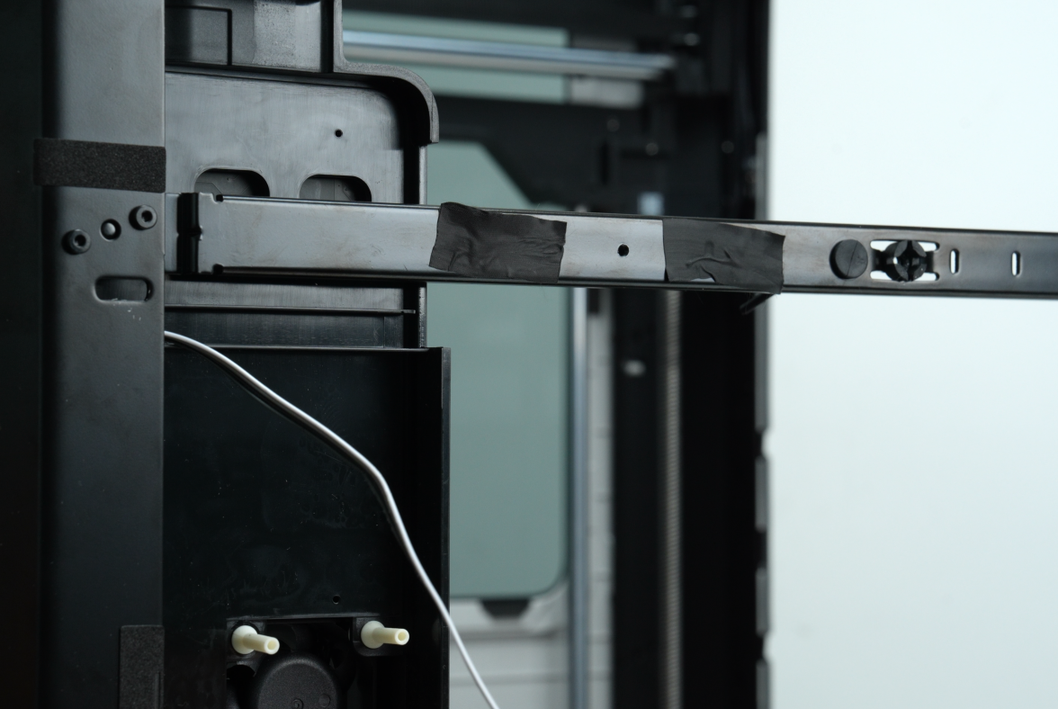
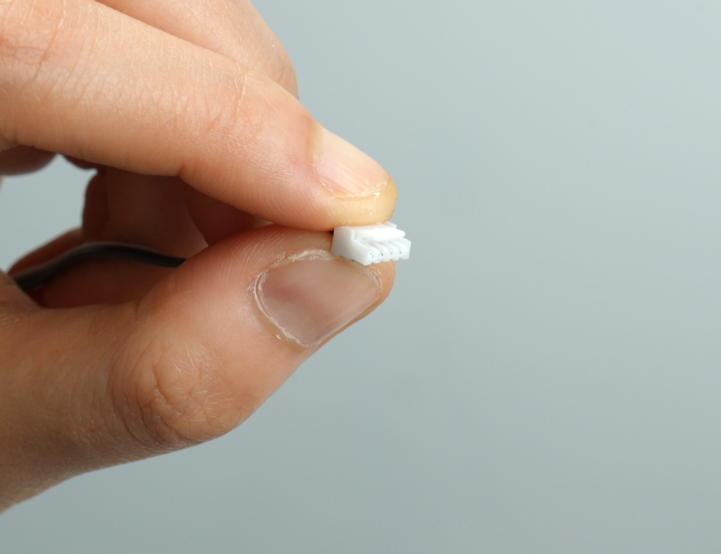
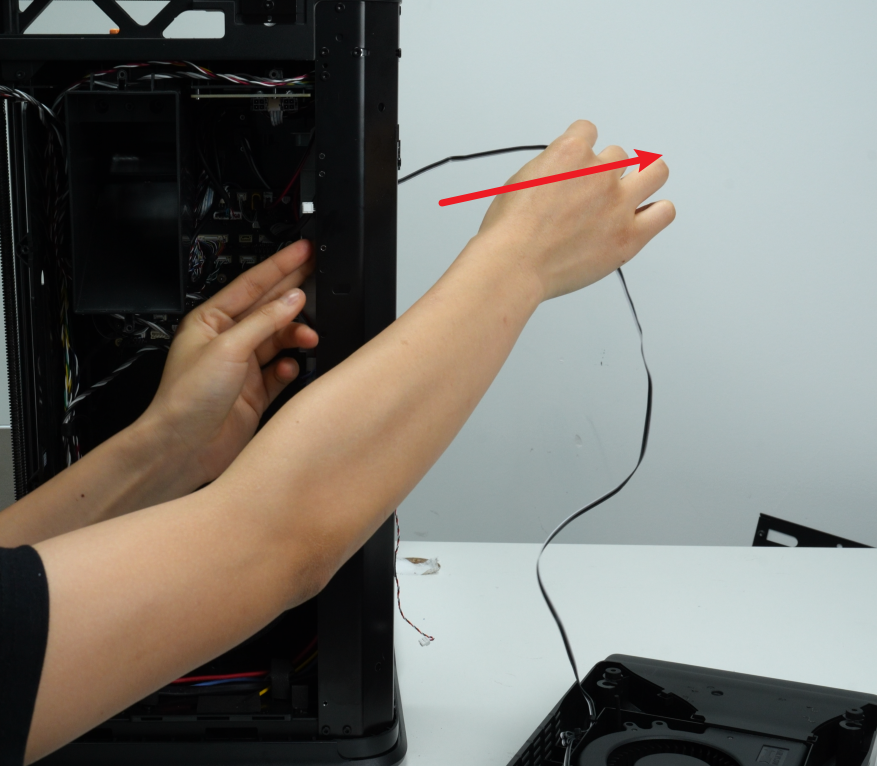
2.Press the buckle on the auxiliary part cooling fan cable connector (as indicated by the red arrow in the figure below), disconnect the cable from the MC board, and pull the cable out from the gap between the left liner and the pillar.
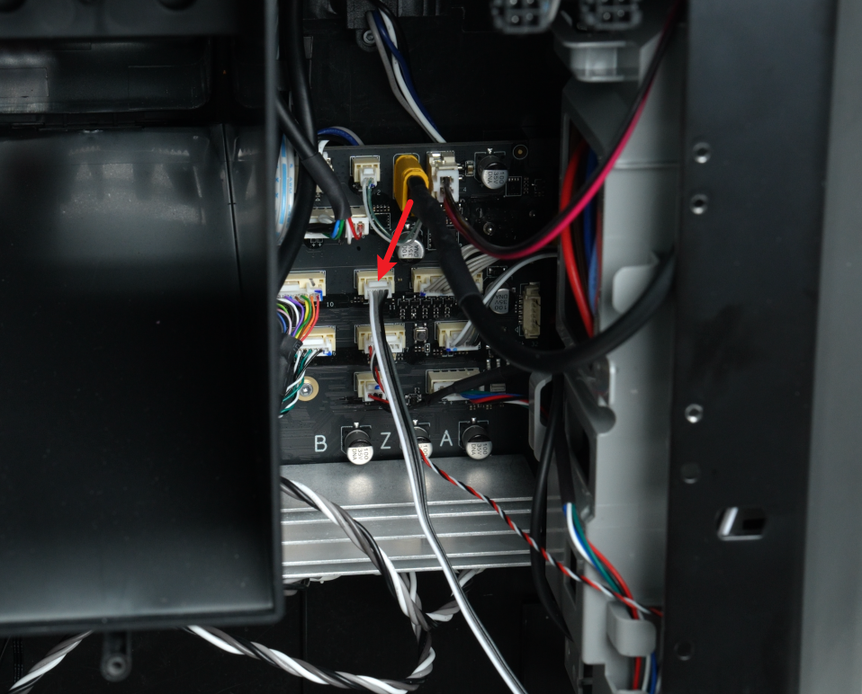
Step 8: Remove the Soft Screws of Auxiliary Part Cooling Fan (Optional)
If your soft screws are not damaged or are long enough to pass through the auxiliary part cooling fan, you can ignore this step and do not need to replace the soft screws.
You can remove the two soft screws from the printer beam by pulling them on the outside.

Install the Auxiliary Part Cooling Fan
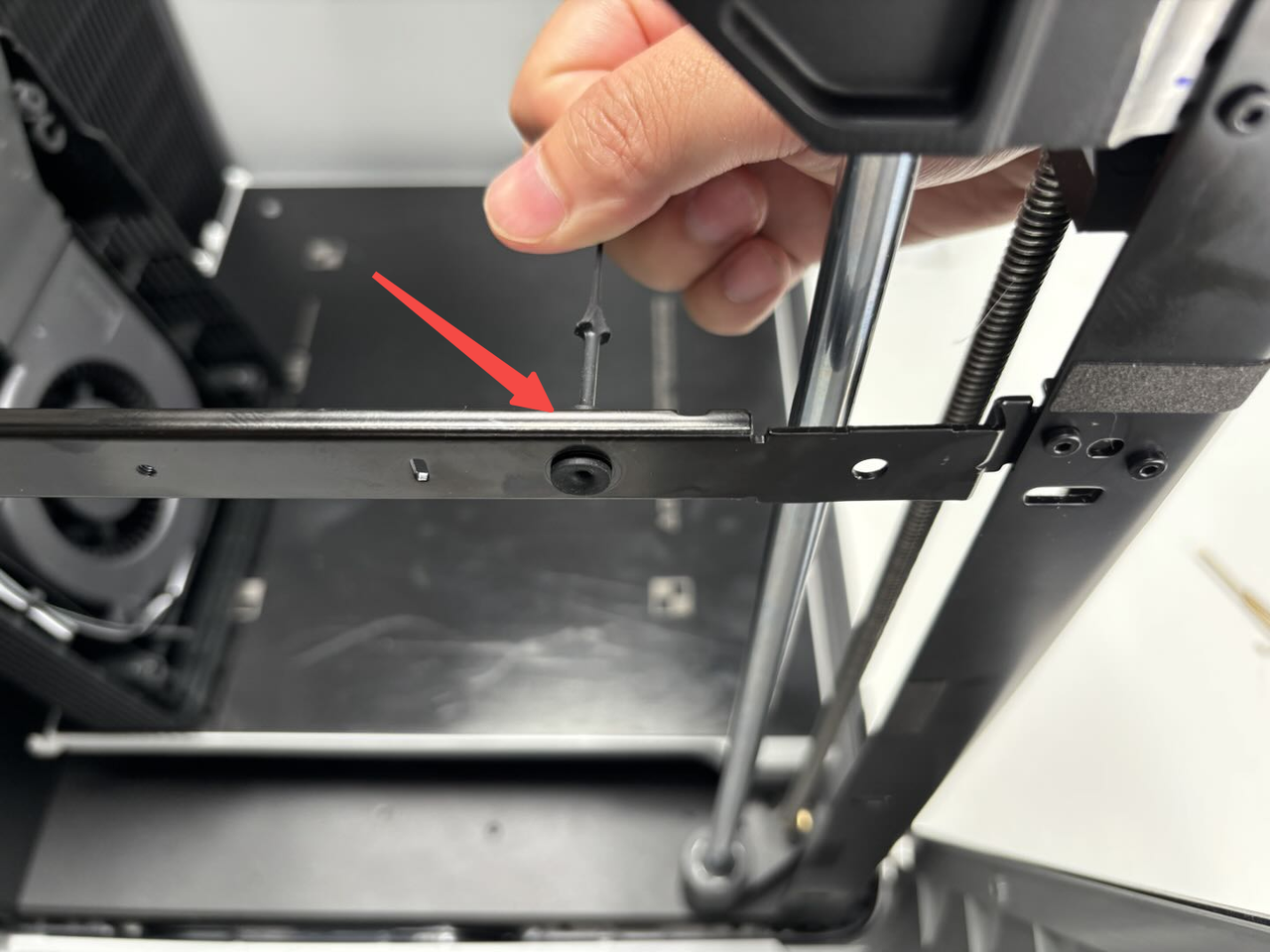
Step 1: Install the Soft Screws of Auxiliary Part Cooling Fan (Optional)
If your soft screws are not damaged or are long enough to pass through the auxiliary part cooling fan, you can ignore this step and do not need to replace the soft screws.
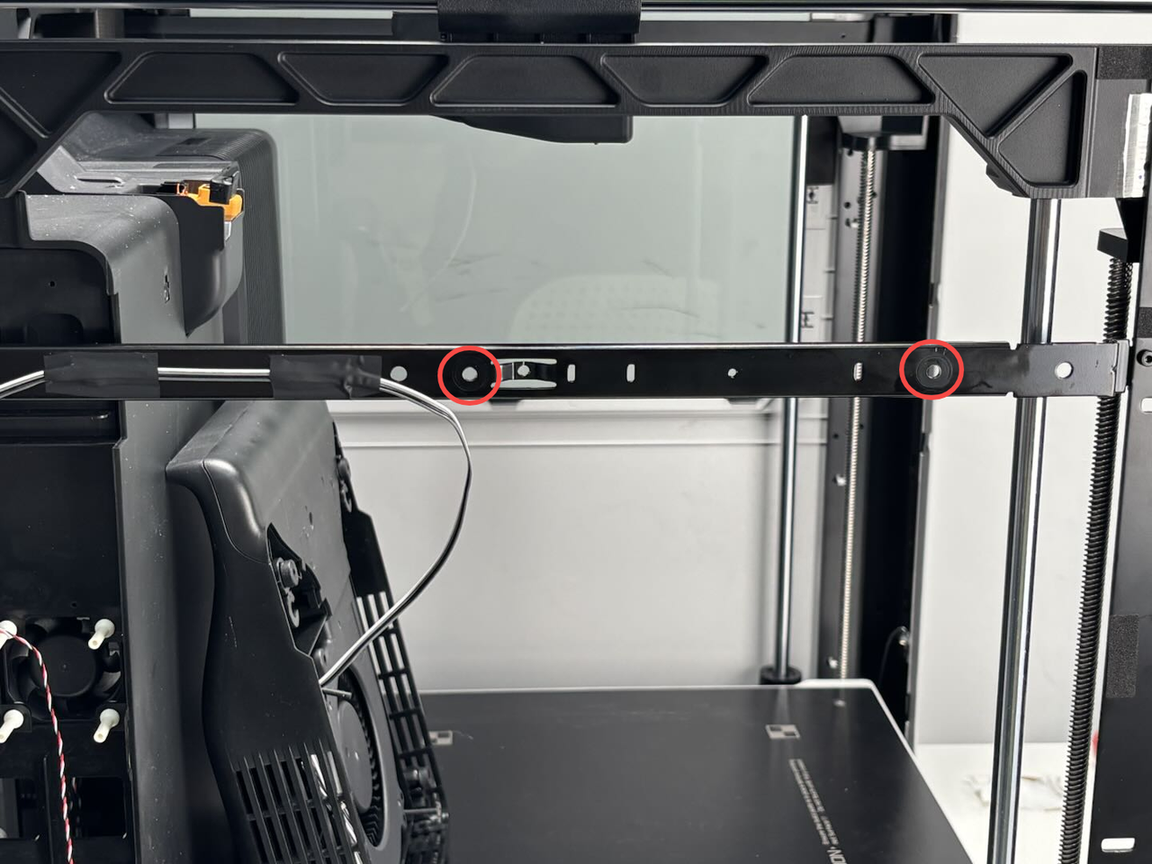
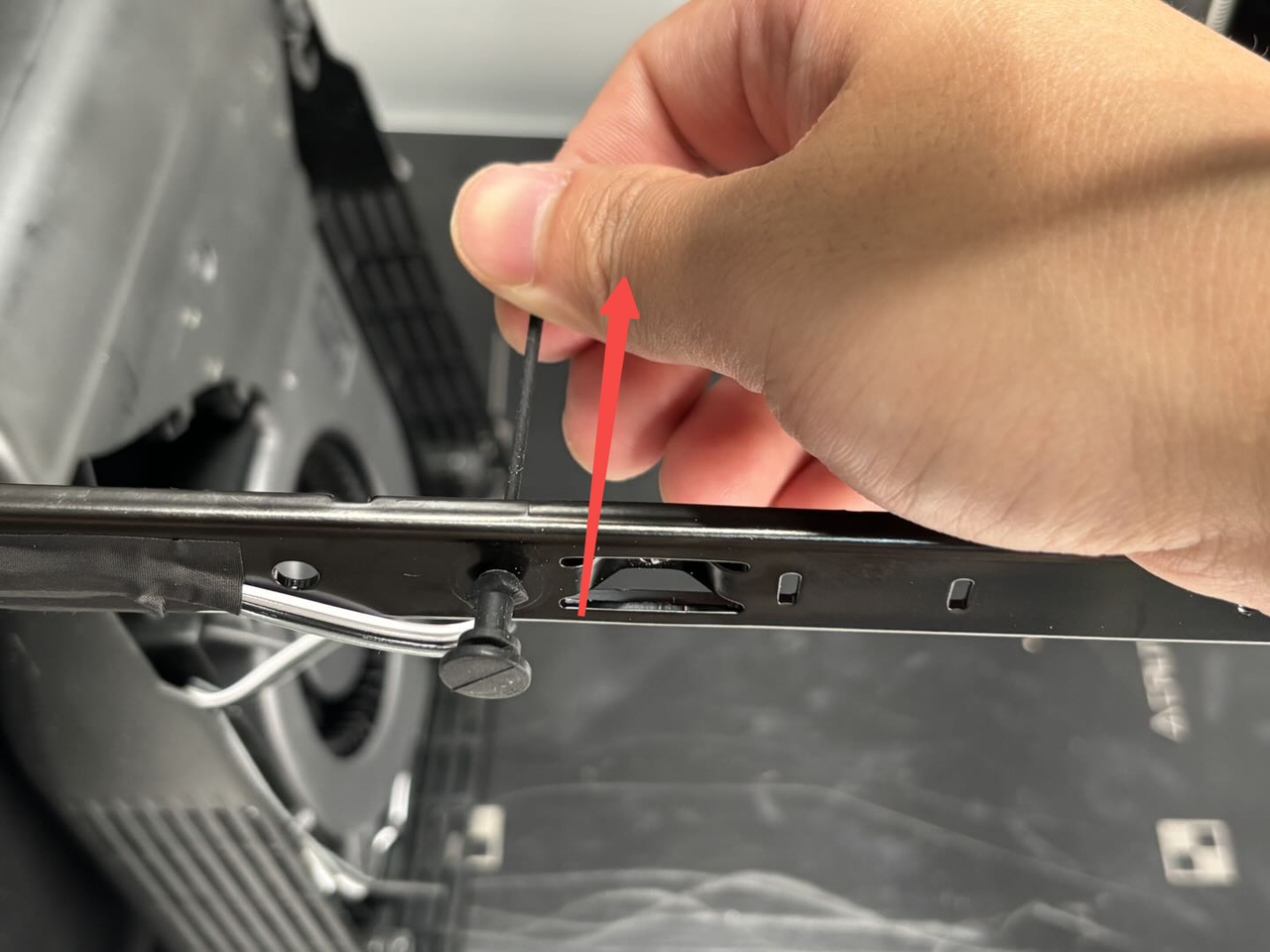
Insert the soft screw through the small hole in the beam and pull the soft screw until it snaps into the beam.
Step 2: Connect the Fan Cable
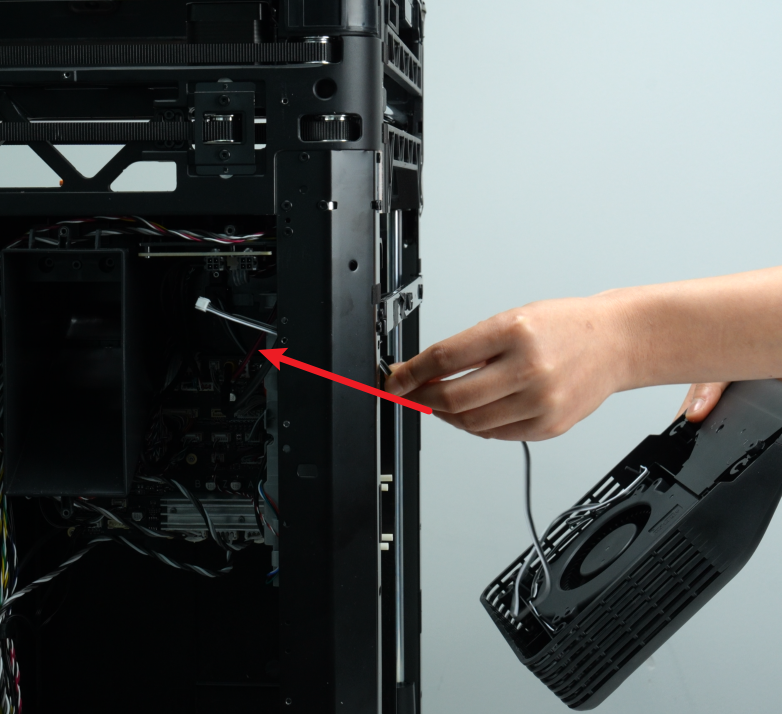
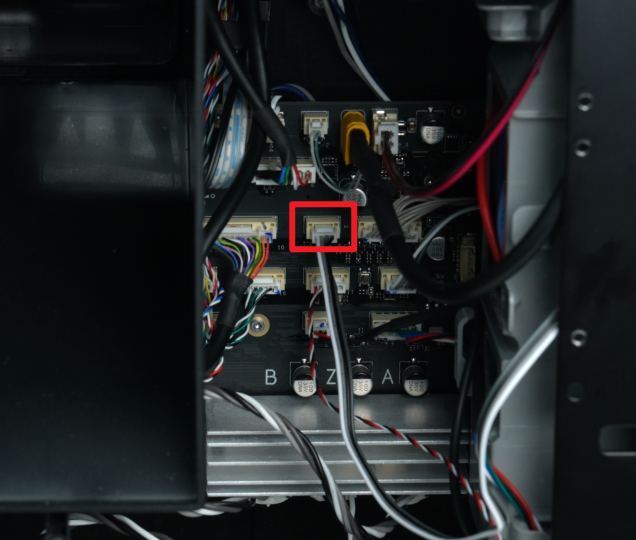
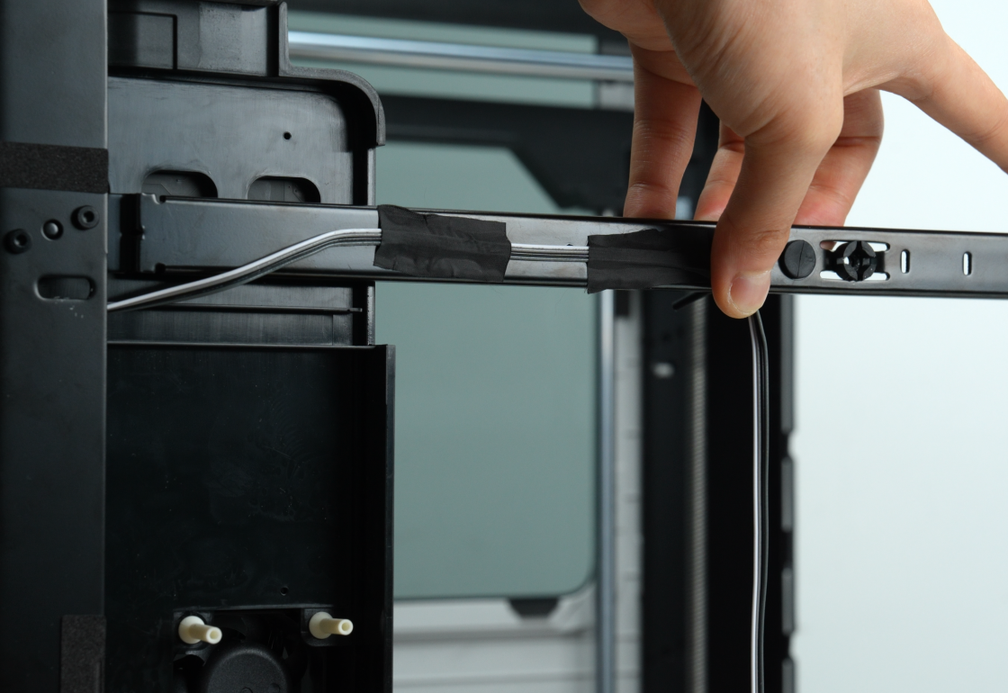
1.Pass the connector of the new auxiliary part cooling fan through the gap between the side panel and the liner, connect it to the MC board, and finally clip the hall sensor connectors (red, white and black) on the left side panel and the auxiliary part cooling fan connector into the cable buckle of the AC board cover;
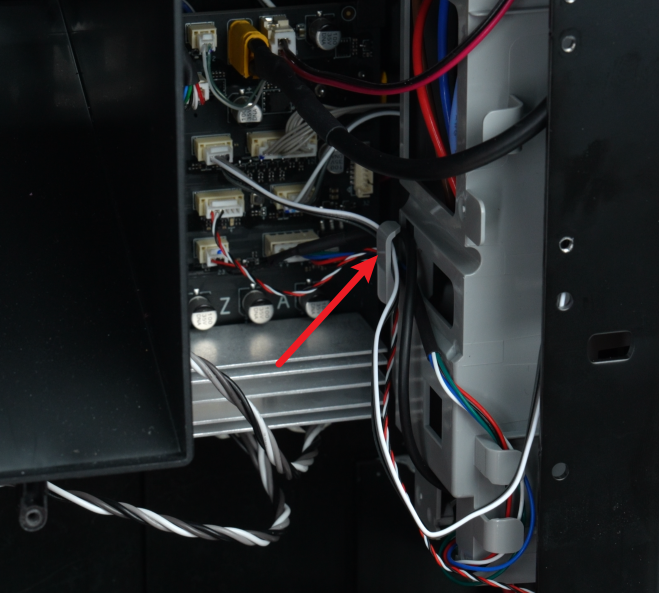
2.Use tape to attach the cable to the beam.
Note: You can use old tape to attach it.
Step 3: Secure the Clips of the Left Side Panel
1.Before installation, please check whether the silicone plug at the screw hole of the beam is installed in place. If not, please check whether it is left on the left beam of the printer;
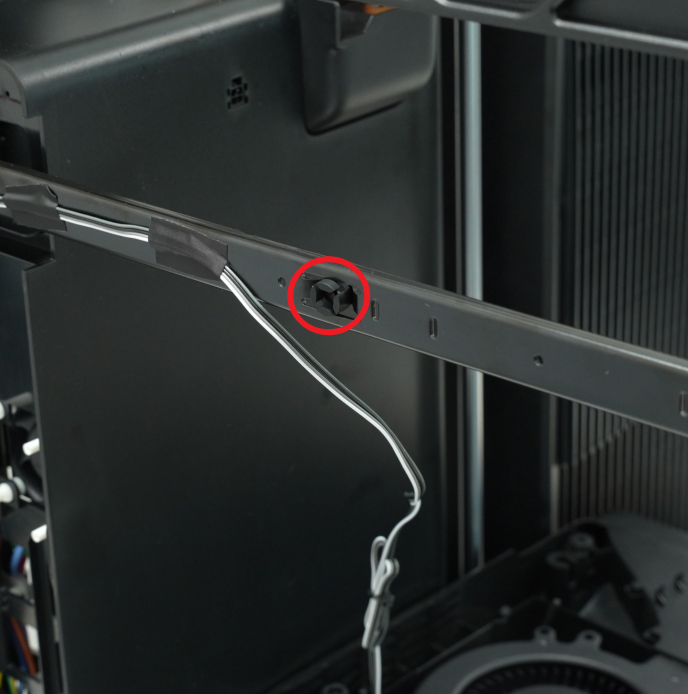
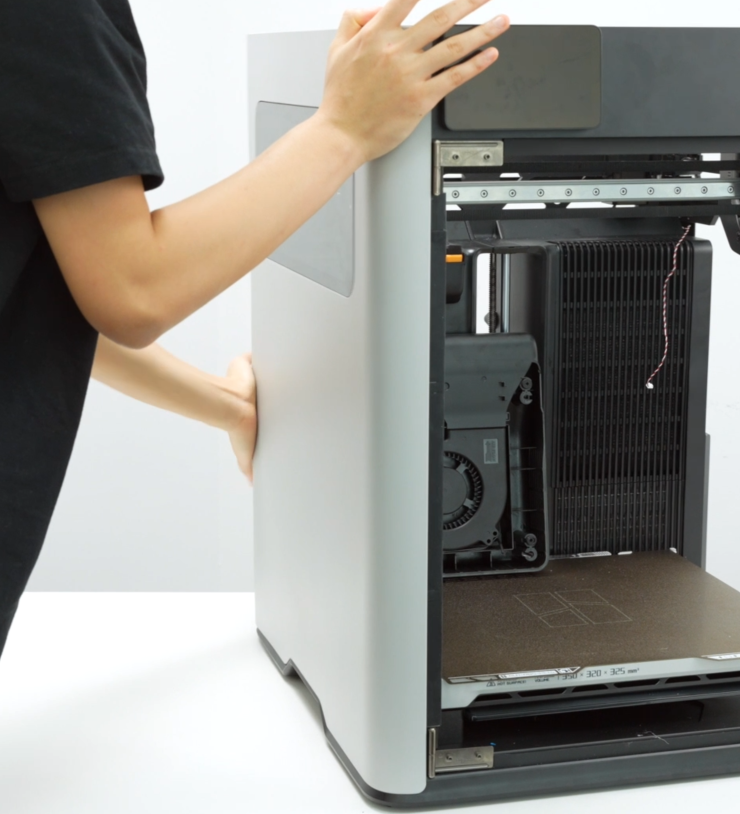
2.Align the two large pins at the bottom of the left side panel with the corresponding small holes at the bottom of the printer and insert them, then connect the hall effect sensor on the left side panel to the hall connector, and re-stick the tape that sticks the hall connector to the side panel;
It is recommended to push the buckle on the back of the printer first, as these clips do not have fixed tabs, making them easier to push in.
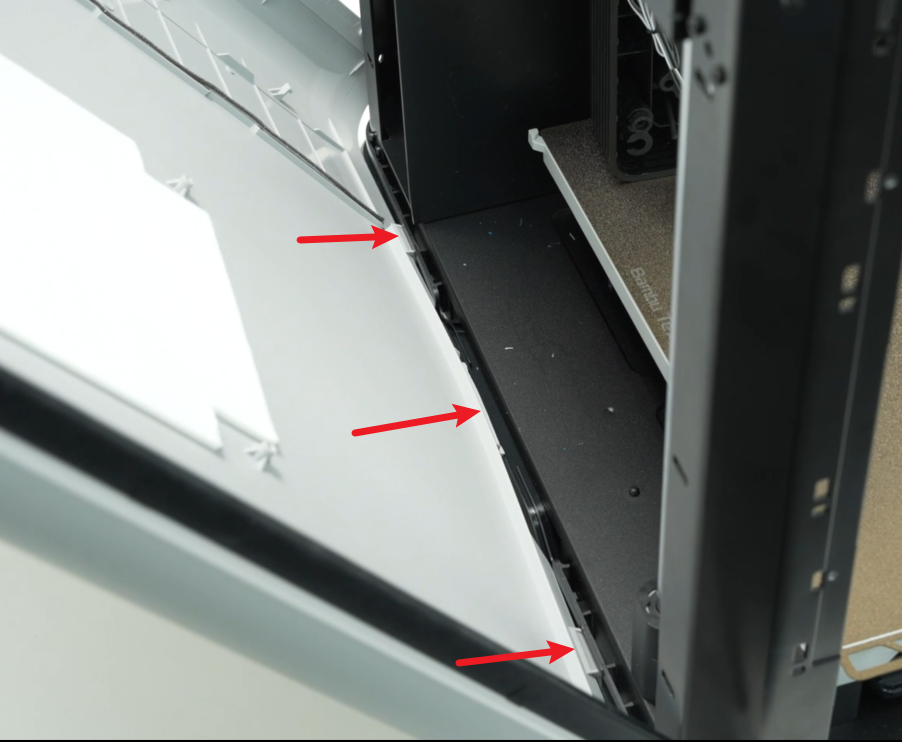
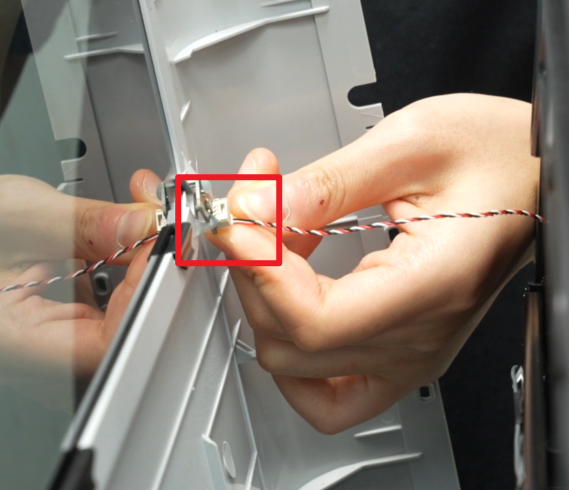
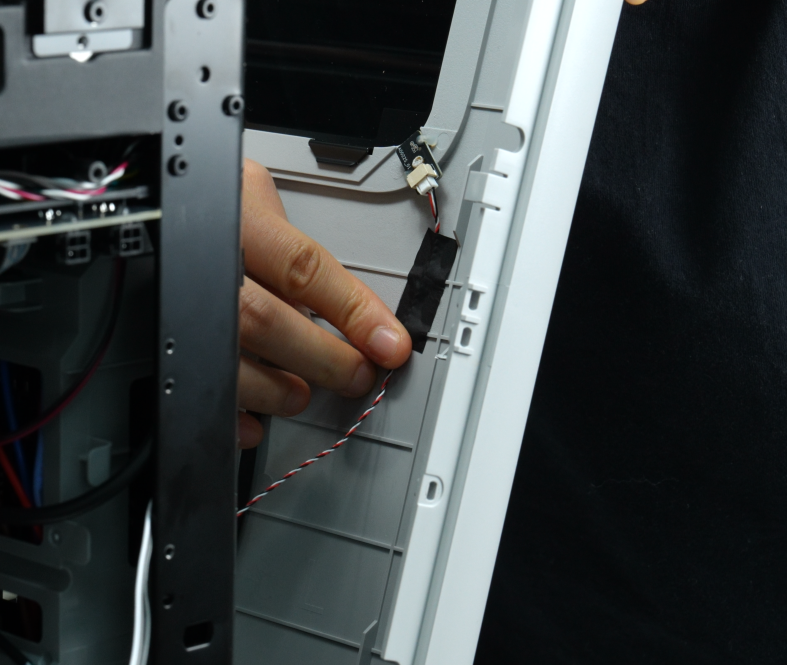
Push the left side panel upwards slowly, hold the armrest with your hand, insert the buckle of the armrest into the bottom of the printer, and then insert the two small buckles near the front door and the back into the corresponding small holes at the bottom of the printer;
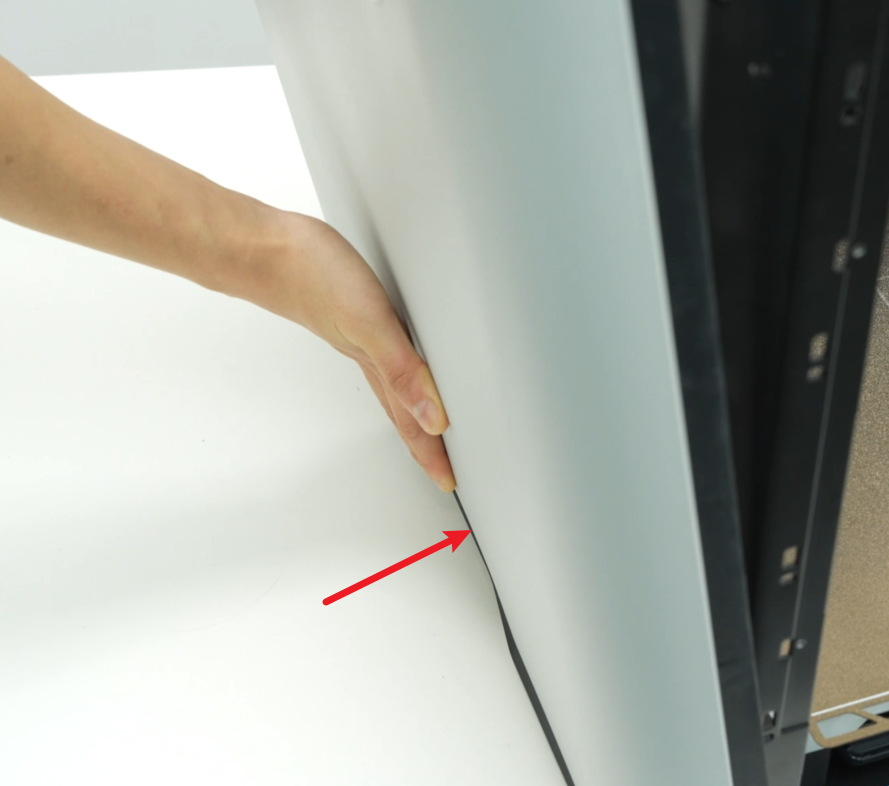
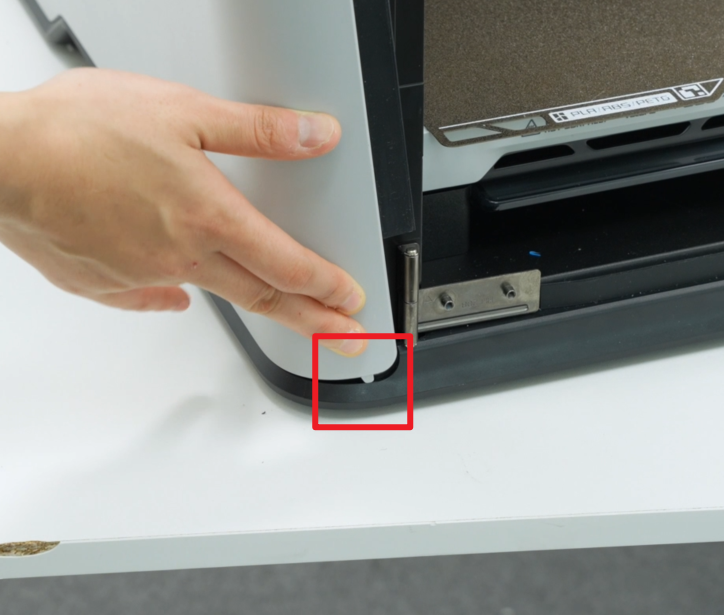 After installing the bottom of the left side panel, please check whether all the buckles at the bottom are in place and not floating. Then push the right side panel inward and secure all the buckles in place.
The buckles are redundantly designed. If they break during the disassembly and assembly process, it will not affect normal use. It is fine as long as there is no floating.
Step 4: Tighten the Left Side Panel Fixing Screws
1.Use an H2.0 Allen key to tighten the two screws (BT3x8) on the inside of the left side panel, and then use an H2.0 Allen key to tighten the one screw (BT3×8) fixed to the beam;
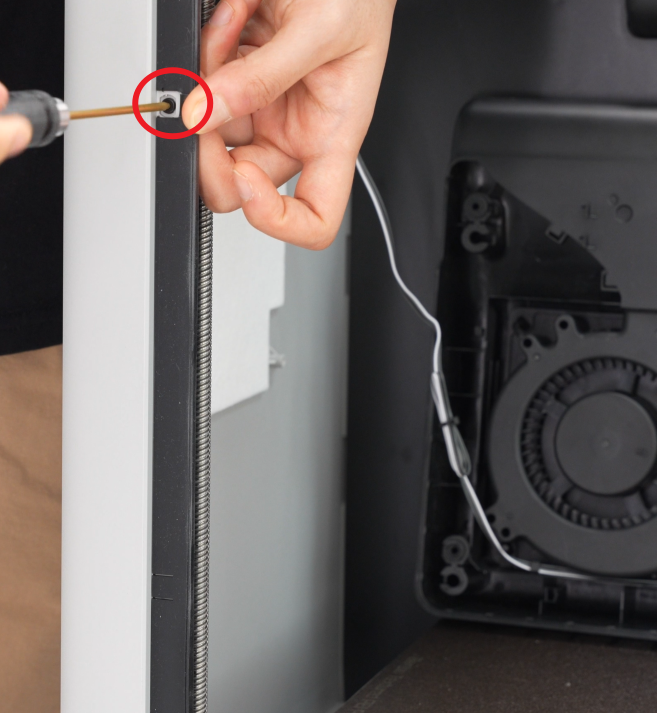
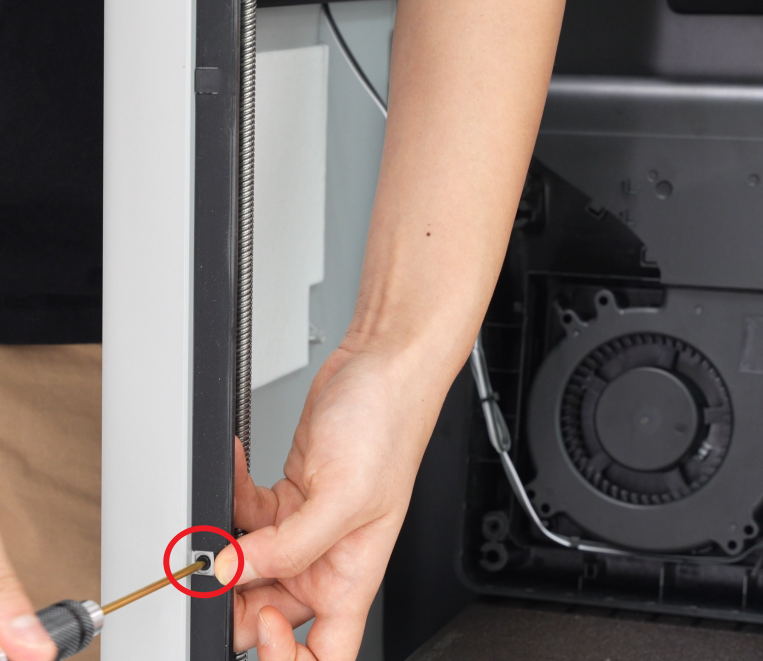
2.Pry open the opening on the silicone strip and tighten the two fixing screws (ST3x3) with an H2.0 Allen key;
If the opening is difficult to tear open, you can use an Allen key to assist in prying it open.
Step 5: Install the Auxiliary Part Cooling Fan
Method One:
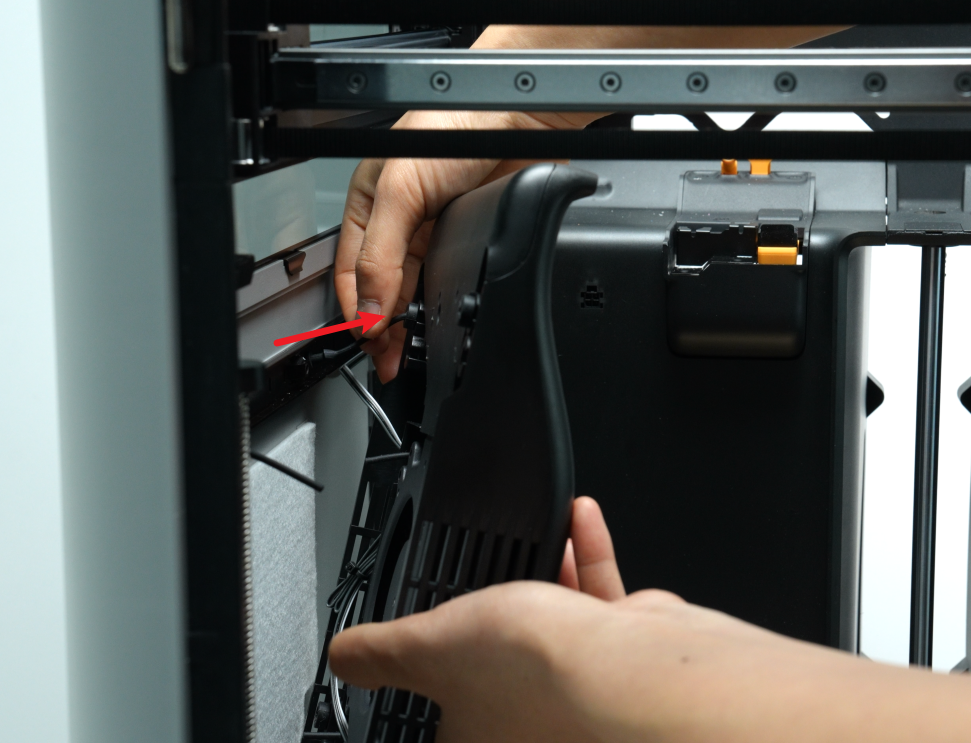
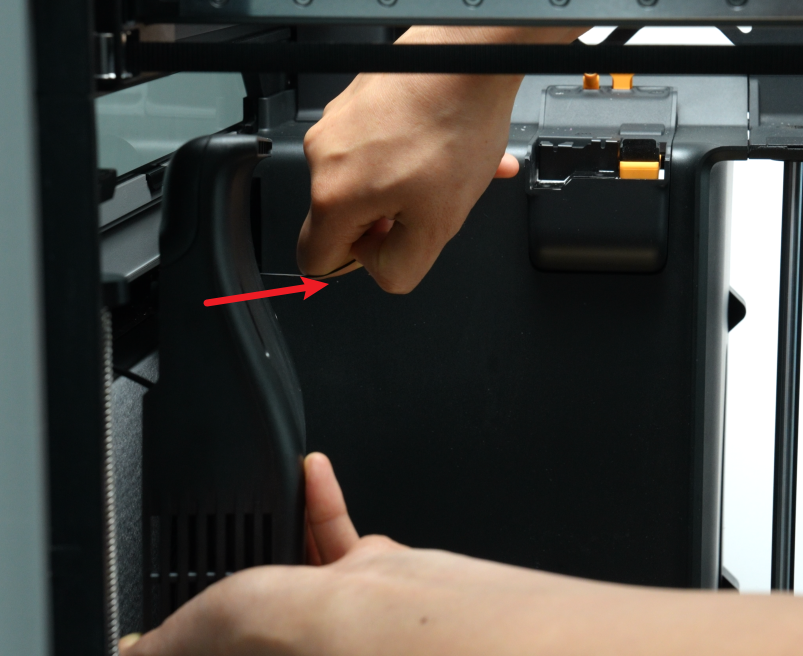
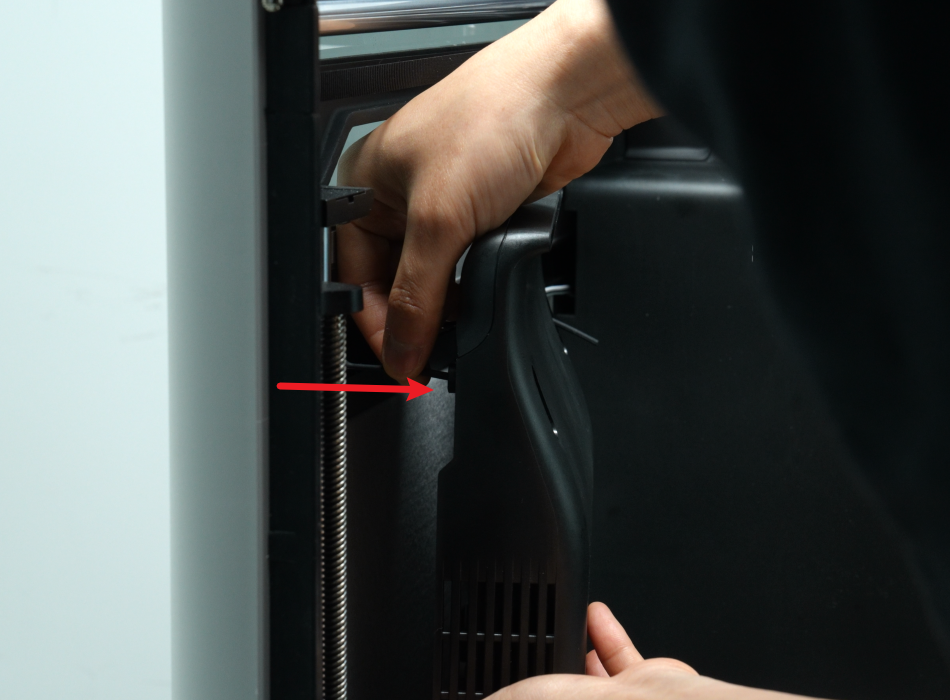
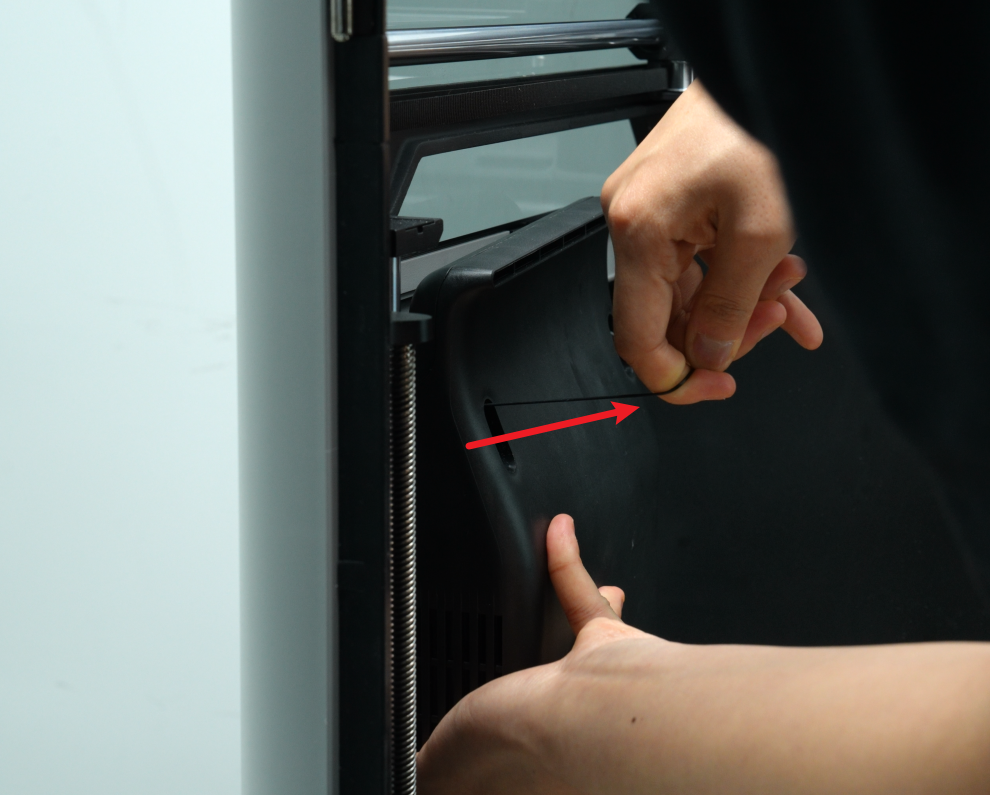
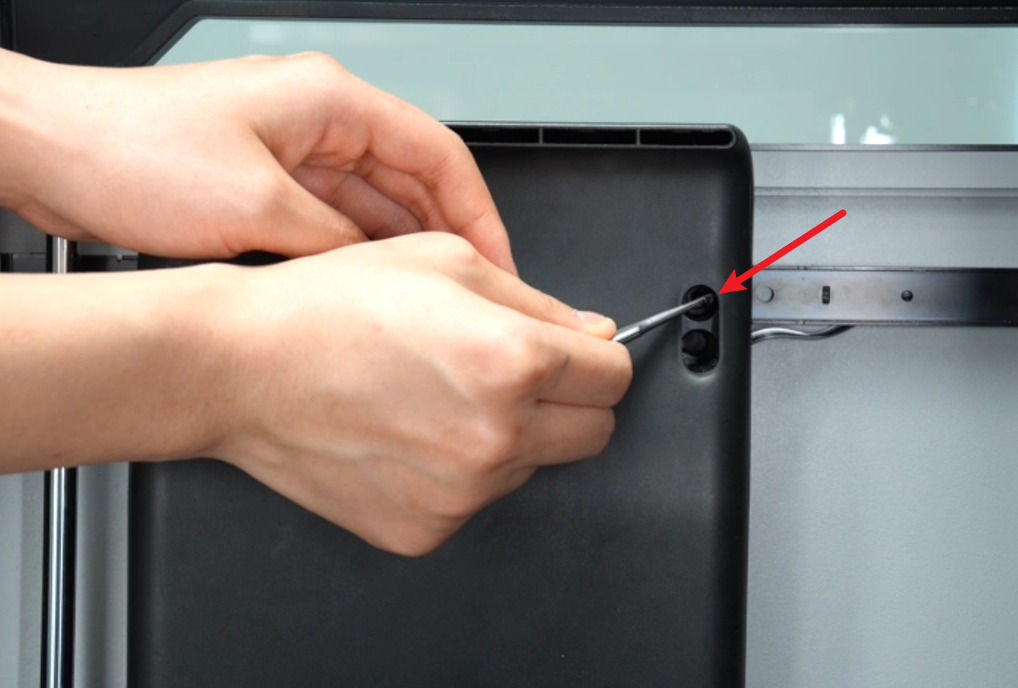
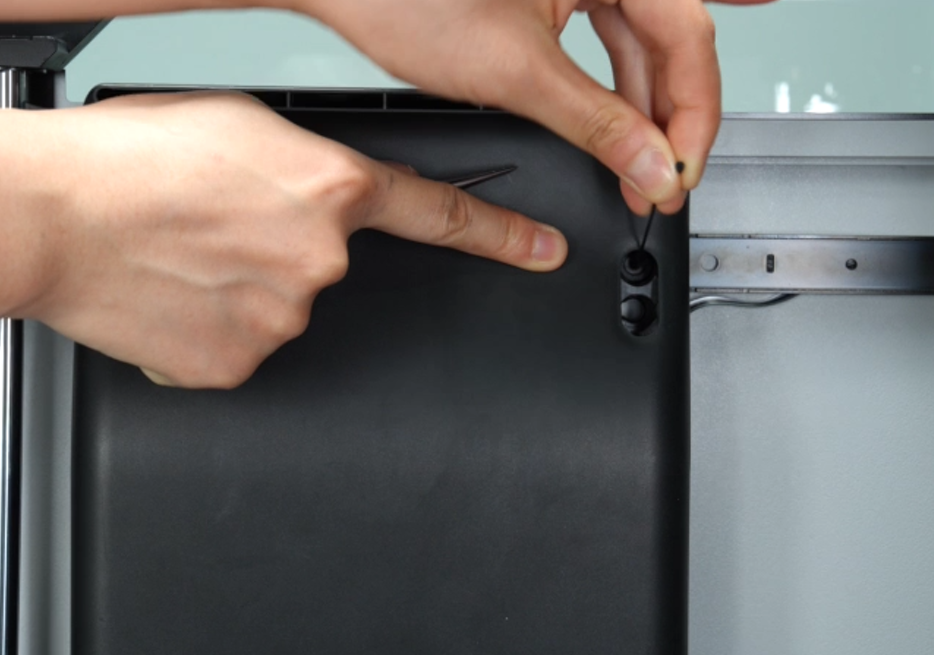
1.Pass the soft screw through the small hole near the inside of the auxiliary part cooling fan, then pull the soft screw by hand to fix the top of the auxiliary part cooling fan with the soft screw; install the soft screw on the outside after the inside is installed;
Note:
You can hear a "click" sound when the soft screw is pulled into place;
The soft screw is made longer at the factory for easy installation. After installation, you can use scissors to cut off some of it for a better appearance.
2.Use an H2.0 Allen key to tighten the two bottom fixing screws.
Note: The fixing screws of the H2D auxiliary part cooling fan are all located in the small holes on the top.
Method Two:
1.Align the auxiliary part cooling fan with the screw holes on the left panel, then use an H2.0 Allen key to tighten the two bottom fixing screws (BT3x16);
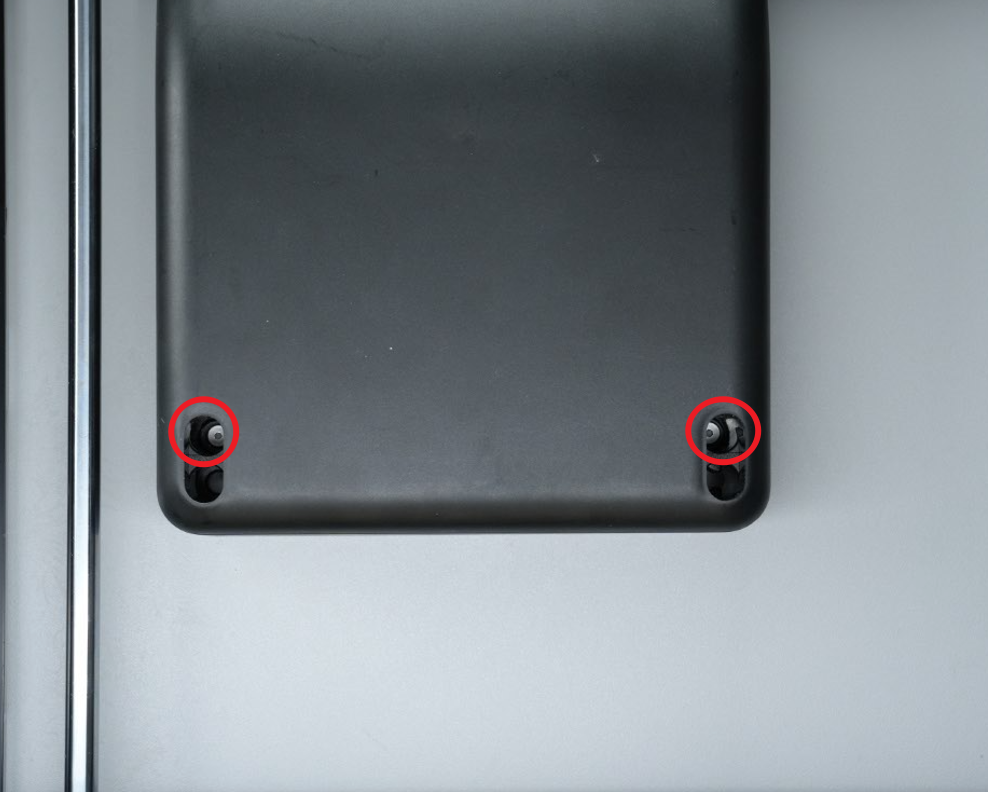
2.Gently pull apart the auxiliary part cooling fan with both hands, align the two screw holes at the top of the fan with the soft screws, and insert the soft screws into the holes.
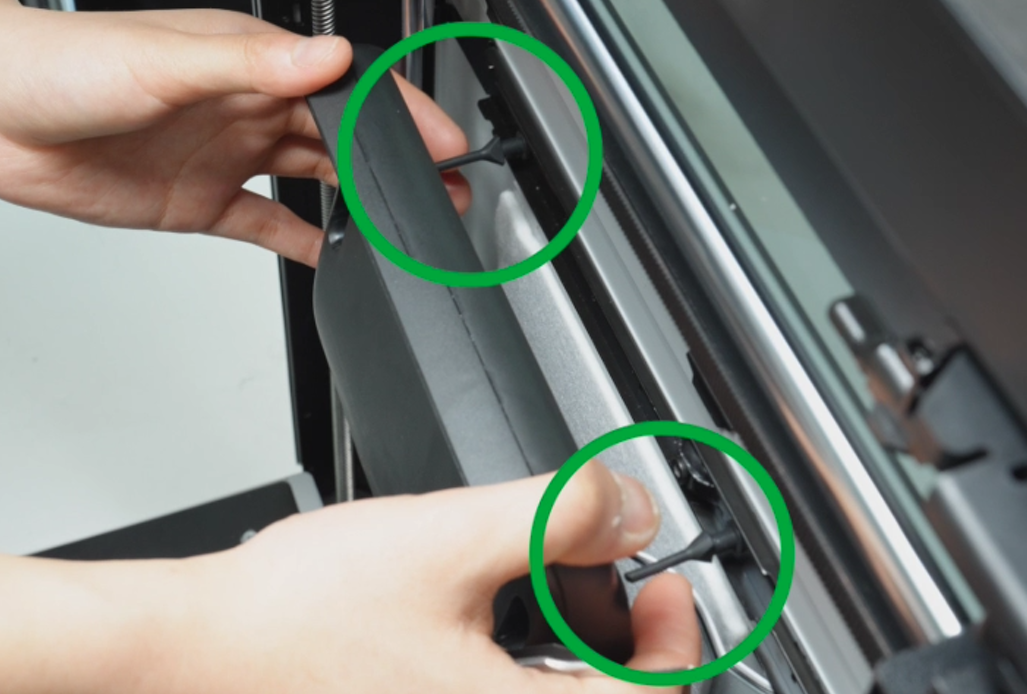
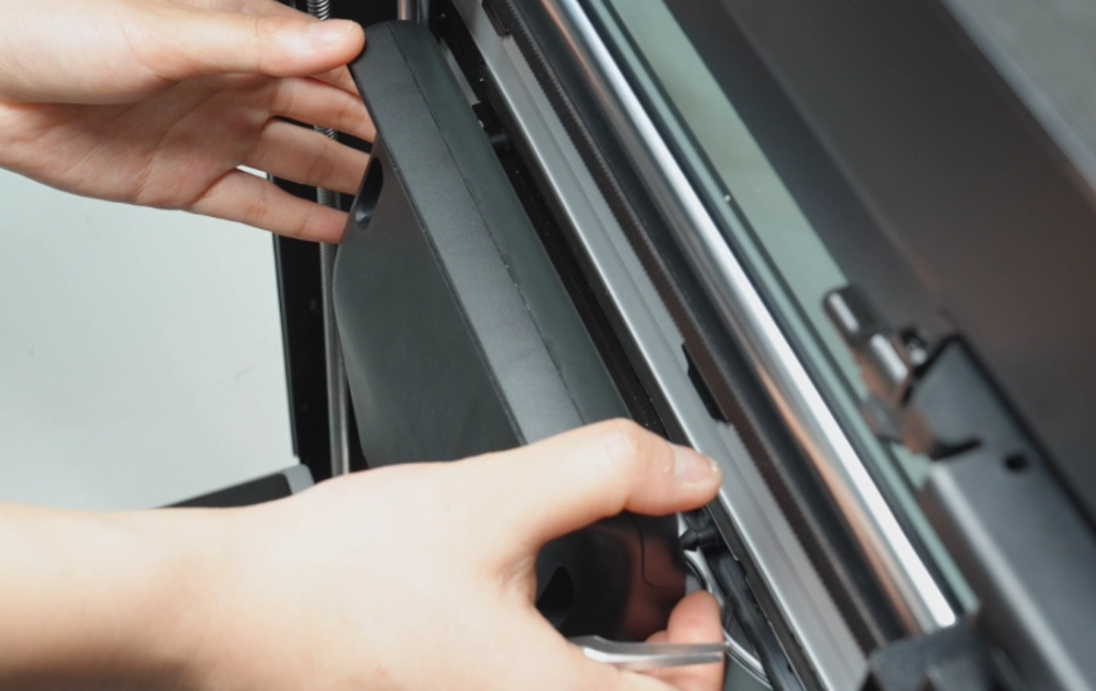
3.Use tweezers to pull out the soft screws slightly, then pull the soft screws to secure the fan in place.
Step 6: Install the Front Glass Door/Front Laser Safety Window
Align the 4 screw holes on the front door with the screw holes on the hinge, hold the front glass door steady with your hands, and use an H2.0 Allen key to tighten the 4 screws (M3x3, nut diameter 10mm).
Step 7: Install the Rear Panel
You can refer to this Wiki to replace the rear panel:Replace H2D Rear Panel
Verify the Functionality
Connect the power cable and turn on the power, tap the Auxiliary Part Cooling Fan icon on the screen to turn on the auxiliary part cooling fan.
If the auxiliary part cooling fan works as expected, the replacement is complete. Otherwise, go back to the inspection steps and connect and try again. If the problem persists, contact the Bambu Lab service team for further assistance.